GuideWindows · With the app
Set up Naytto on a Windows PC
For a Windows 10 or 11 PC that you’re sitting at and signed in to. You download Naytto, unzip it and open it, add the PC to your account, then connect from a browser on another device. It takes about 10 minutes.
Before you start
- A PC with Windows 10 (version 1809 or later) or Windows 11, on x64, that you’re signed in to. Naytto for Windows is an early release.
- An email address. If you don’t have a Naytto account yet, your first sign-in creates one and starts your free 14-day trial.
- A passkey or an authenticator app for your account. If you have neither, your browser offers to save a passkey when you approve the PC.
- Another device with a browser, such as a laptop, tablet or phone, to connect from.
The app is on the download page, as a zip. It runs from the folder you unzip and installs no services, so browsers can reach the PC only while you’re signed in to Windows and the PC isn’t locked, and they see your desktop. To reach it while it’s locked or at the Windows sign-in screen, or to set it up over SSH, follow Set up Naytto on a Windows PC from PowerShell instead.
Install Naytto
The download is a zip with no installer: you unzip it and open the app inside.
01Download Naytto
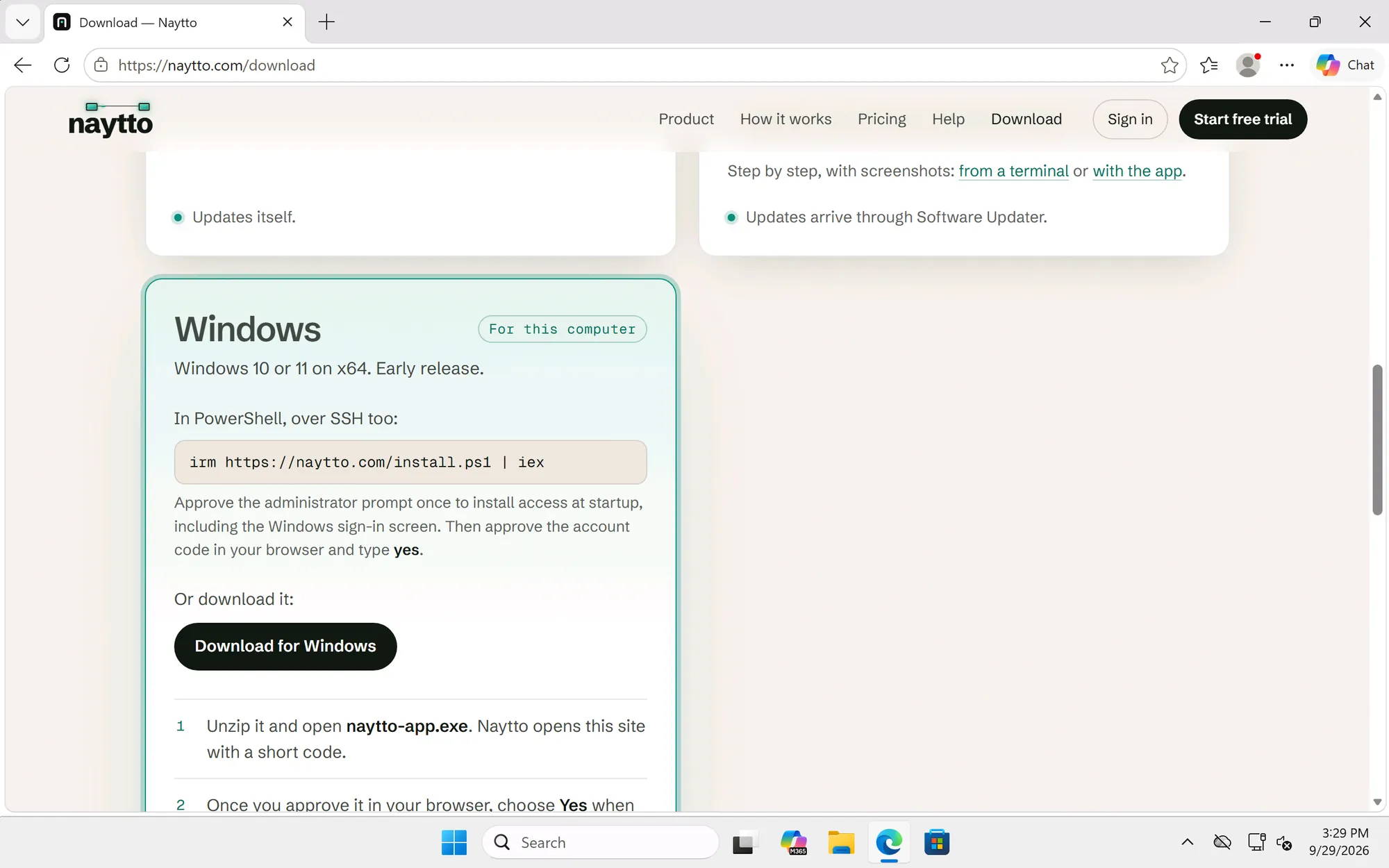
On the PC, open naytto.com/download in your browser. The Windows card is marked For this computer. Under Or download it, choose Download for Windows.
On your first visit, a banner asks whether the site may measure visits with Google Analytics. Accept and Reject both work.
02Open the download
When the download finishes, Edge’s Downloads list shows naytto-windows-x64.zip. Choose Open file, and File Explorer opens the zip. In another browser, open your Downloads folder and double-click the zip.
03Choose Extract all
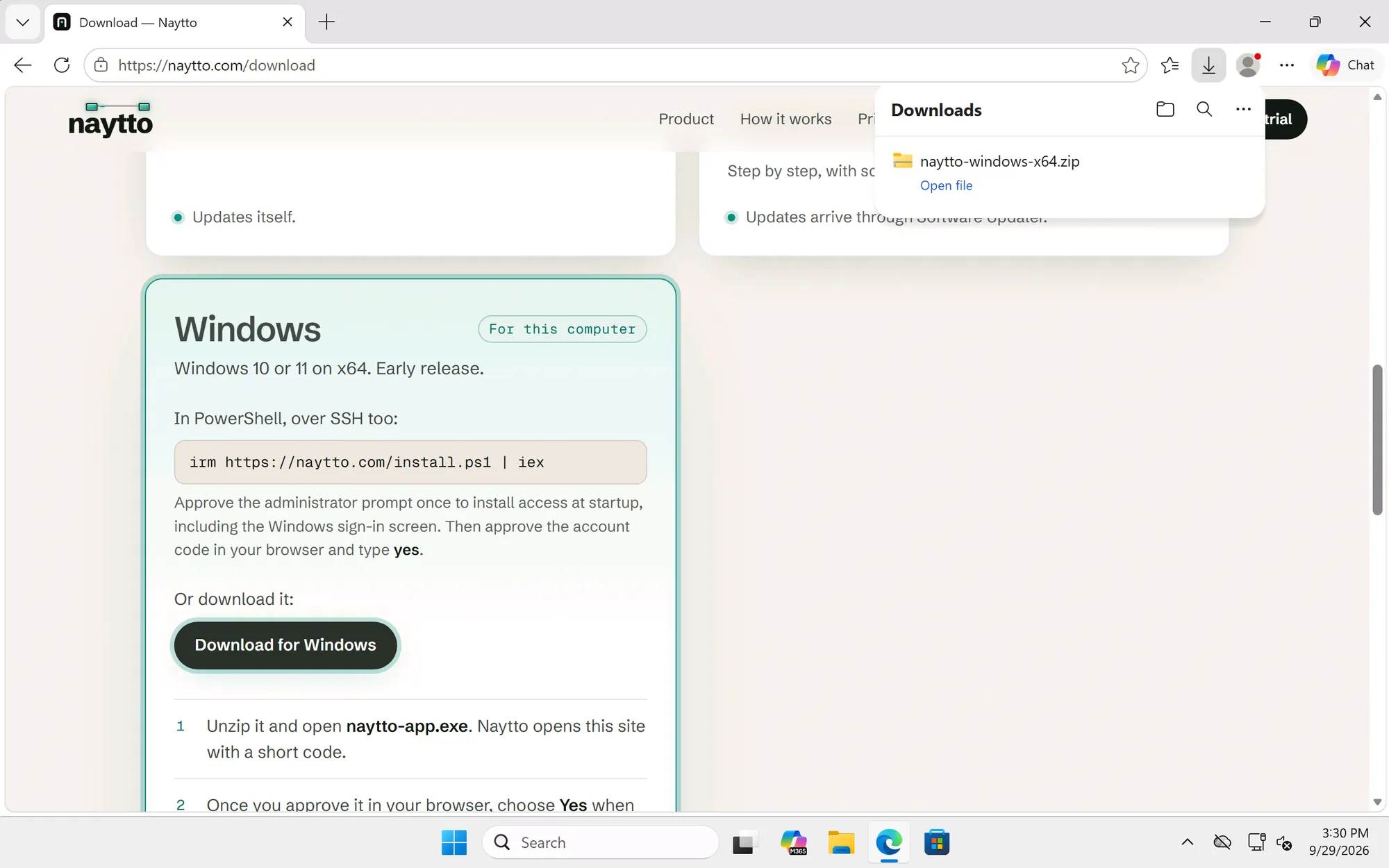
File Explorer lists what’s in the zip: naytto-app, naytto, naytto-vpx.dll, an uninstall script and three license files. Choose Extract all in the toolbar. If the window is narrow, it’s in the … menu.
04Keep the folder and choose Extract
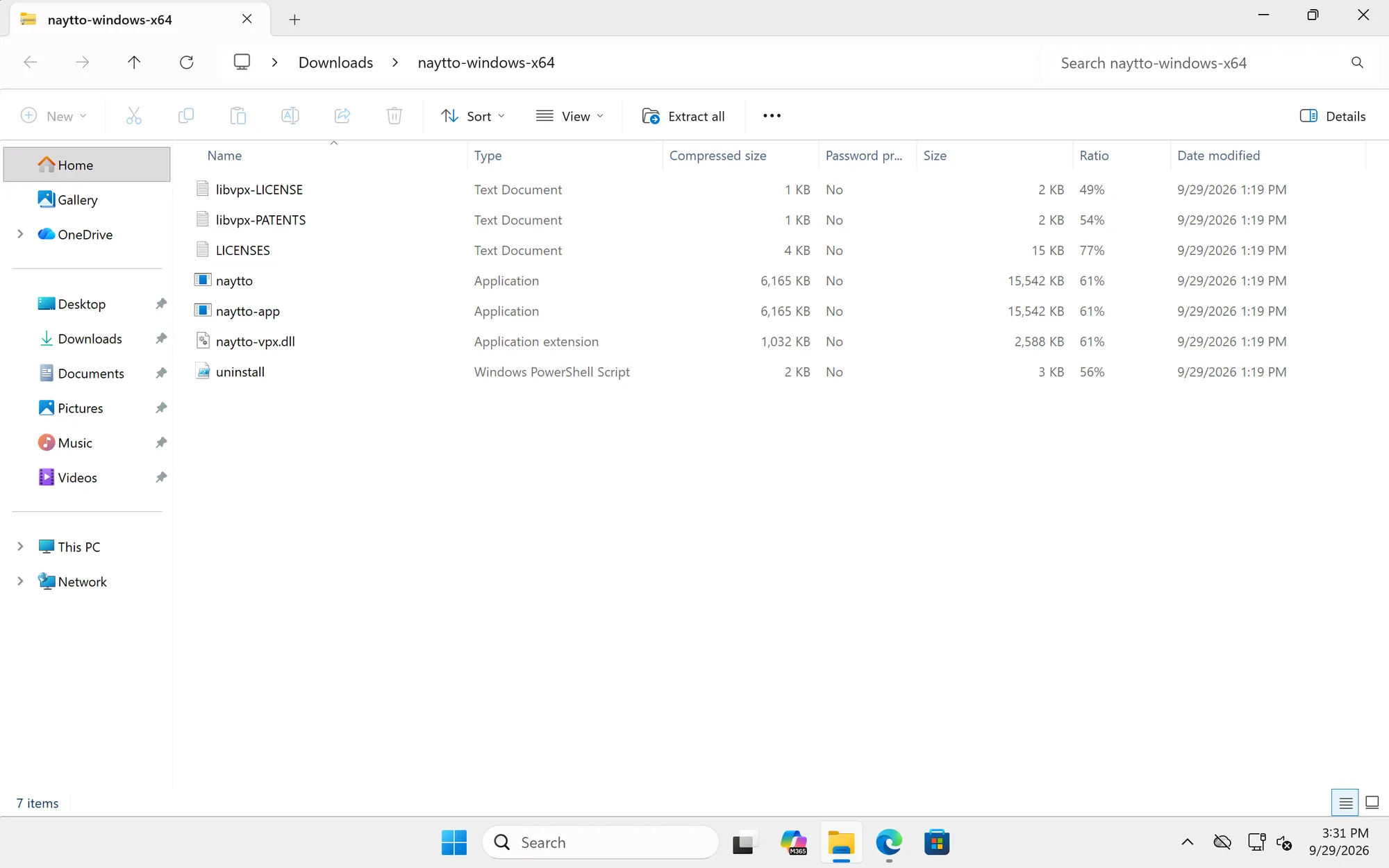
The dialog suggests a folder beside the zip, Downloads\naytto-windows-x64. Keep it and choose Extract. Windows unzips the files and opens that folder in a new File Explorer window.
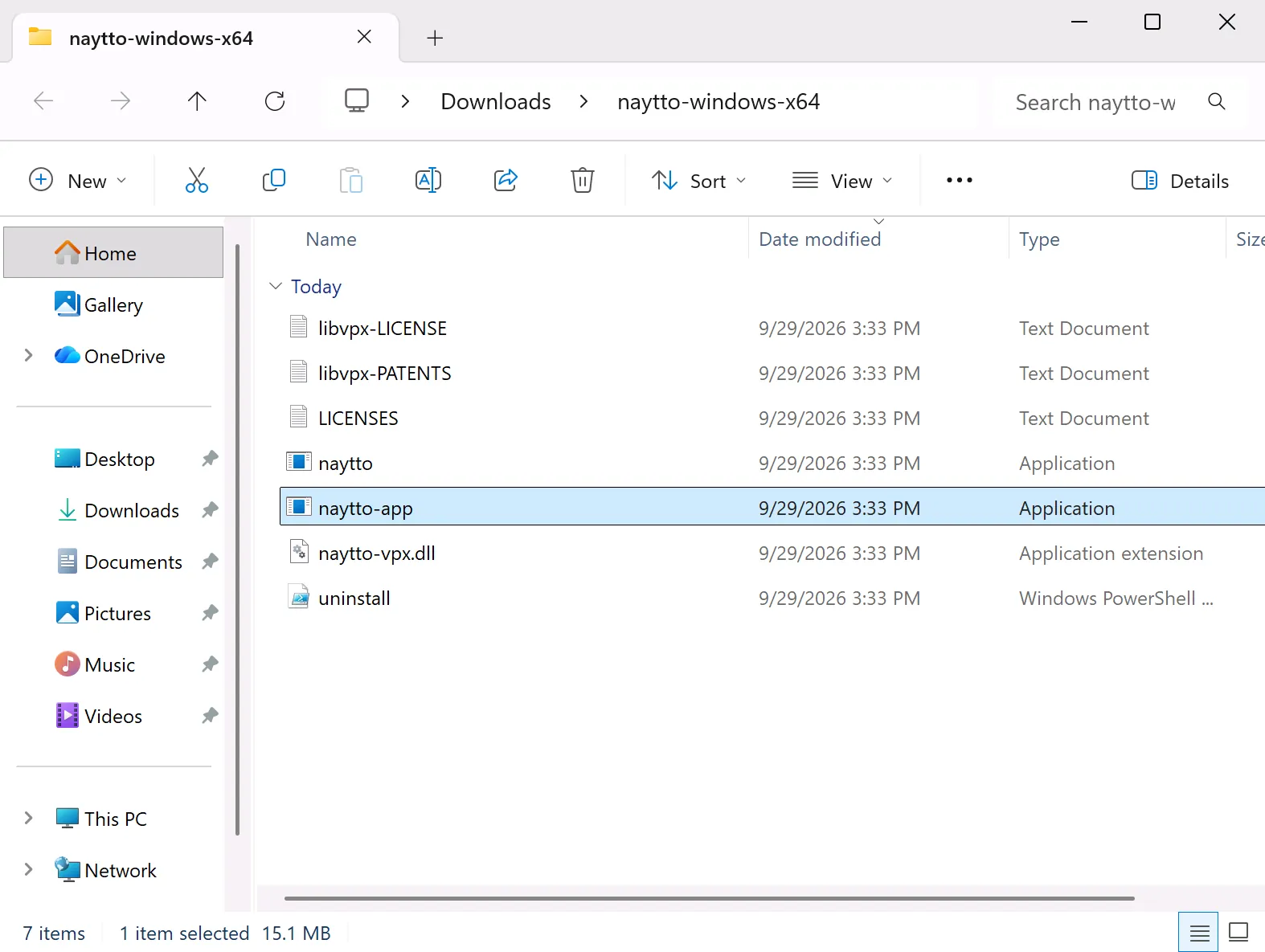
05Open naytto-app
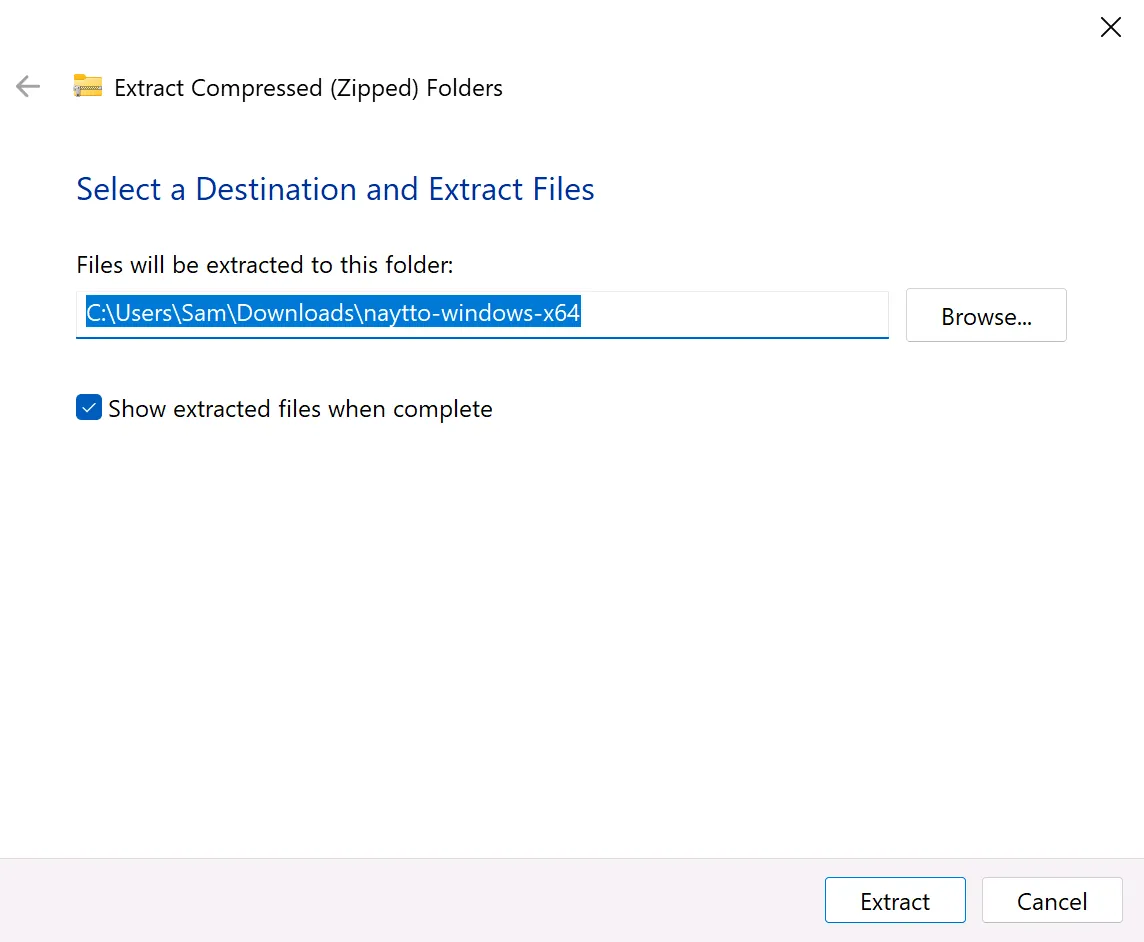
In the extracted folder, double-click naytto-app, not naytto. File Explorer hides the .exe ending, so it reads naytto-app, of type Application.
Naytto runs from this folder, so leave it where it is.
06Choose Run anyway
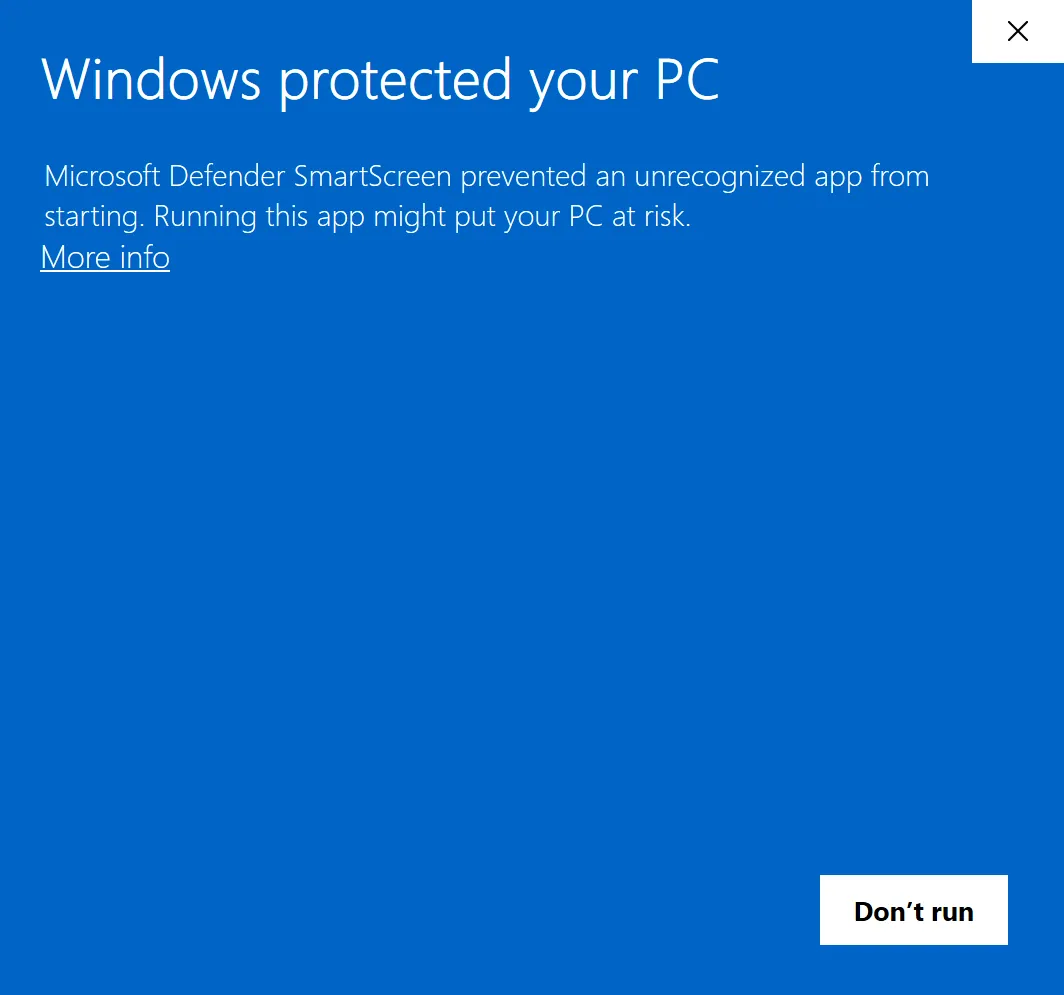
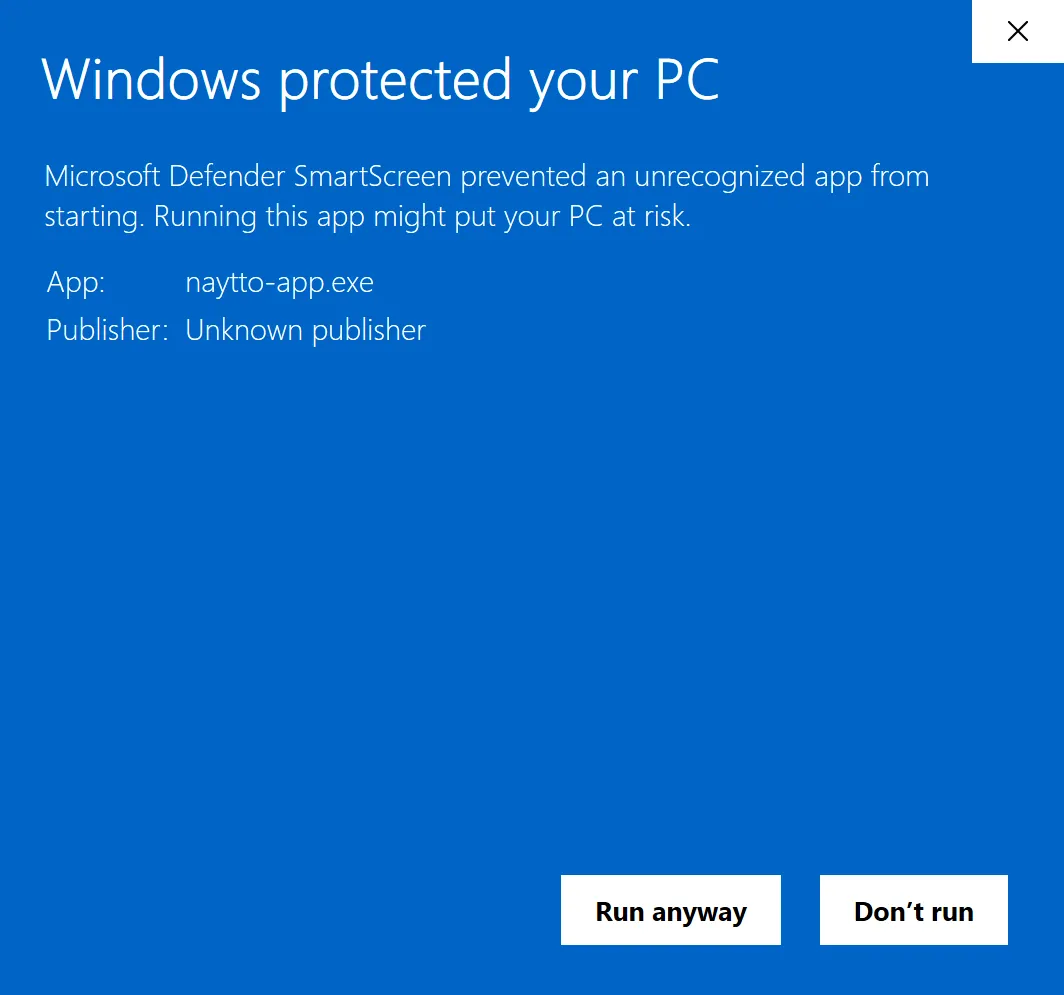
Windows shows Windows protected your PC. Microsoft Defender SmartScreen stops apps it doesn’t recognize, and Naytto’s programs aren’t code-signed yet. Choose More info. The dialog then names the app, naytto-app.exe, from Unknown publisher. Choose Run anyway.
Add it to your account
You start on the PC, approve a code in a browser, then allow your account back on the PC.
07Find the page and the code
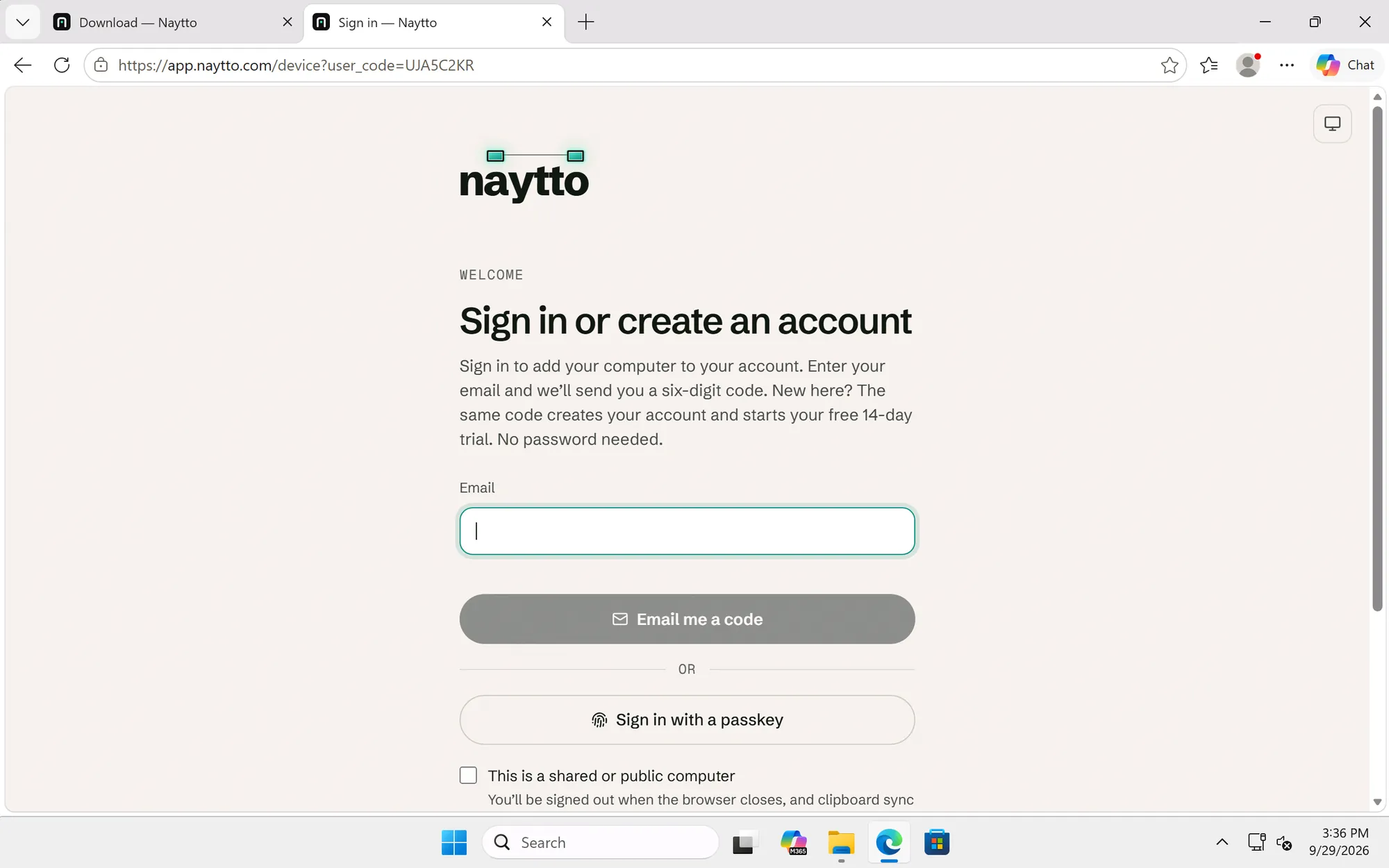
Naytto has no window. Right after Run anyway, your browser opens a new tab at app.naytto.com: Sign in or create an account, with the PC’s code in its address.
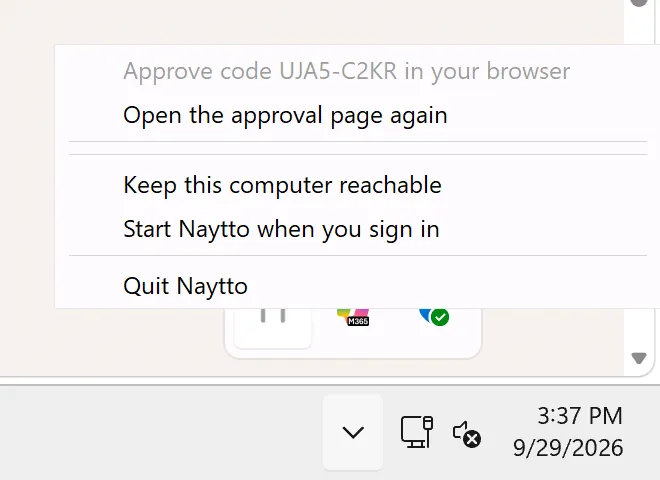
Naytto’s icon appears by the clock. Windows puts new icons under ^, so select that, then Naytto’s icon. Its first line reads Approve code UJA5-C2KR in your browser, with your PC’s own code. If the tab didn’t open, or you closed it, choose Open the approval page again. The code works for 10 minutes.
08Sign in with your email
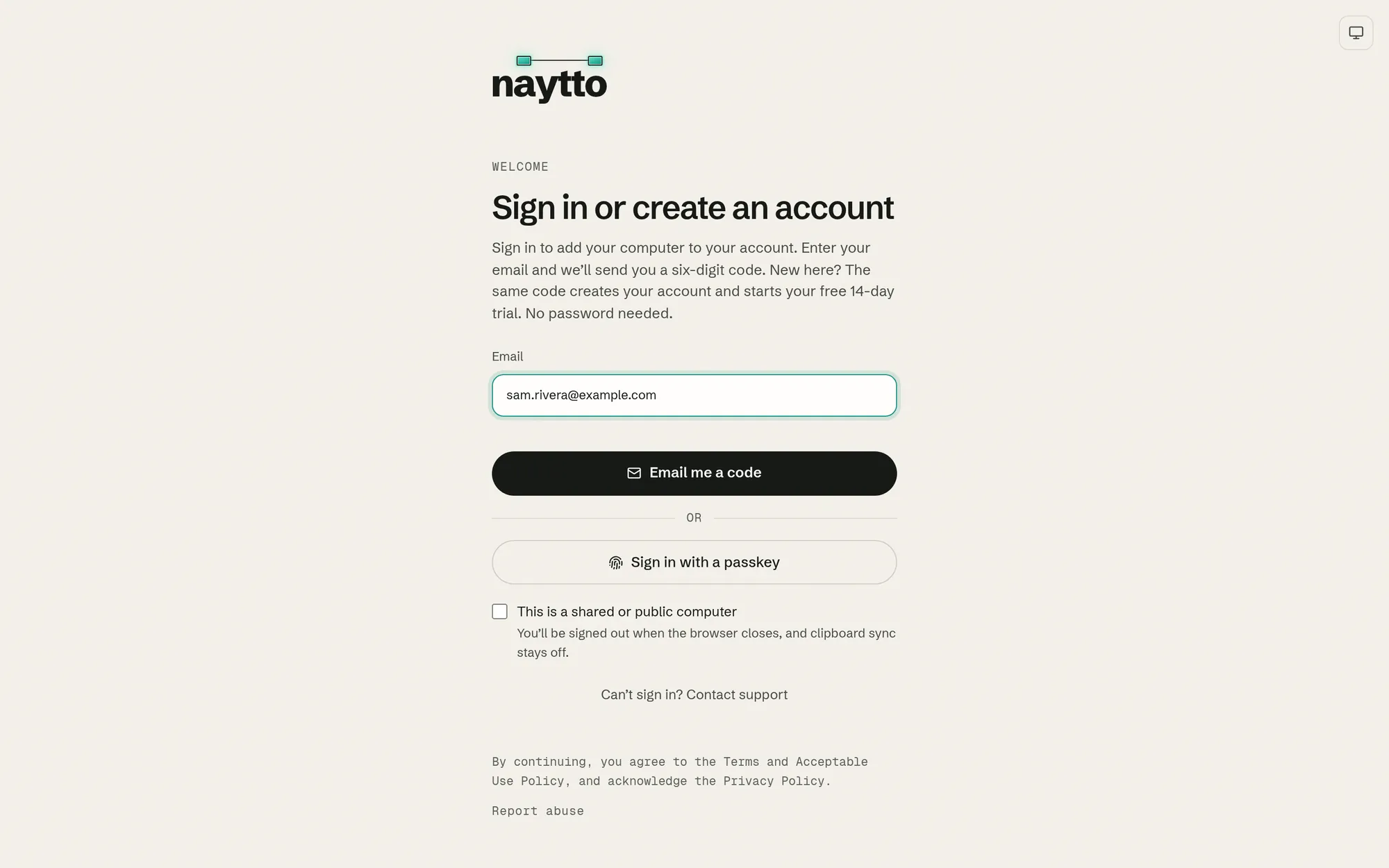
On that page, type your email address and choose Email me a code. The button reads Checking this browser… for a moment first; if a Verify you are human box appears, tick it. New to Naytto? The same code creates your account and starts your free 14-day trial.
09Enter the code from the email
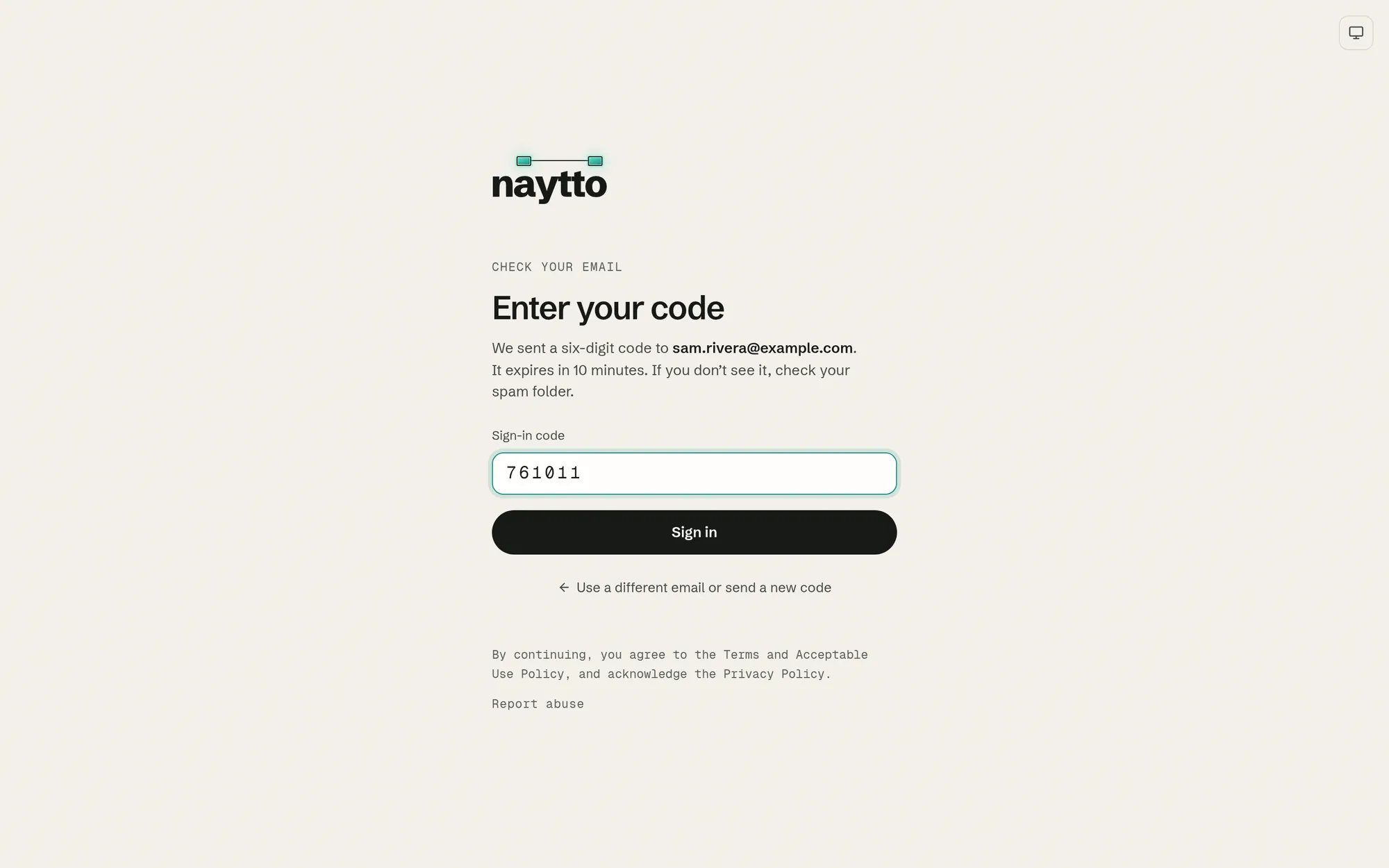
Naytto emails you a six-digit code; the subject line starts with it. Type it in Sign-in code and choose Sign in. The code expires in 10 minutes. If you don’t see the email, check your spam folder.
10Check the code and add the PC
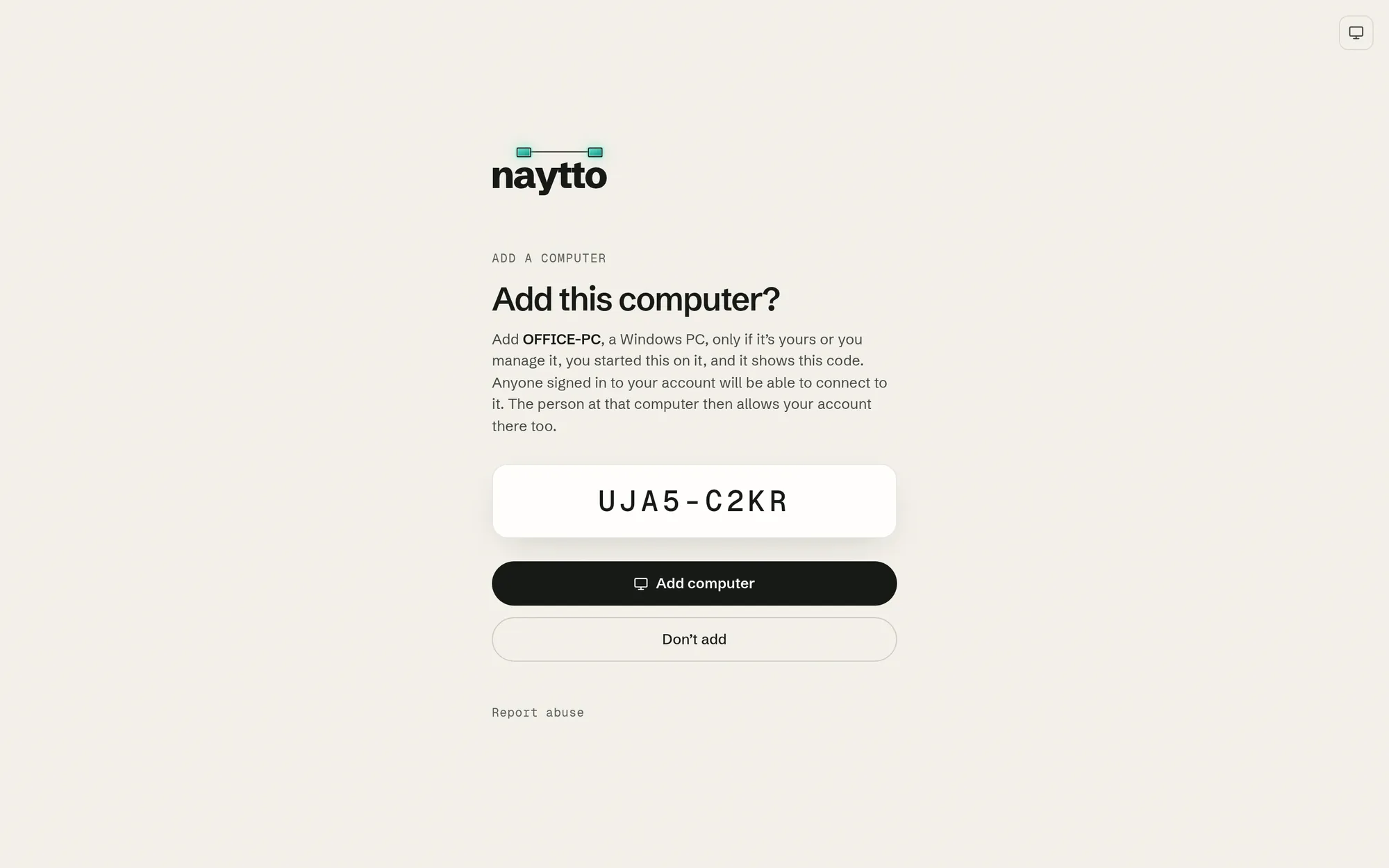
The page asks Add this computer? and names the PC, here OFFICE-PC. Check that its code matches the one in Naytto’s menu, then choose Add computer. Only approve a code you started yourself.
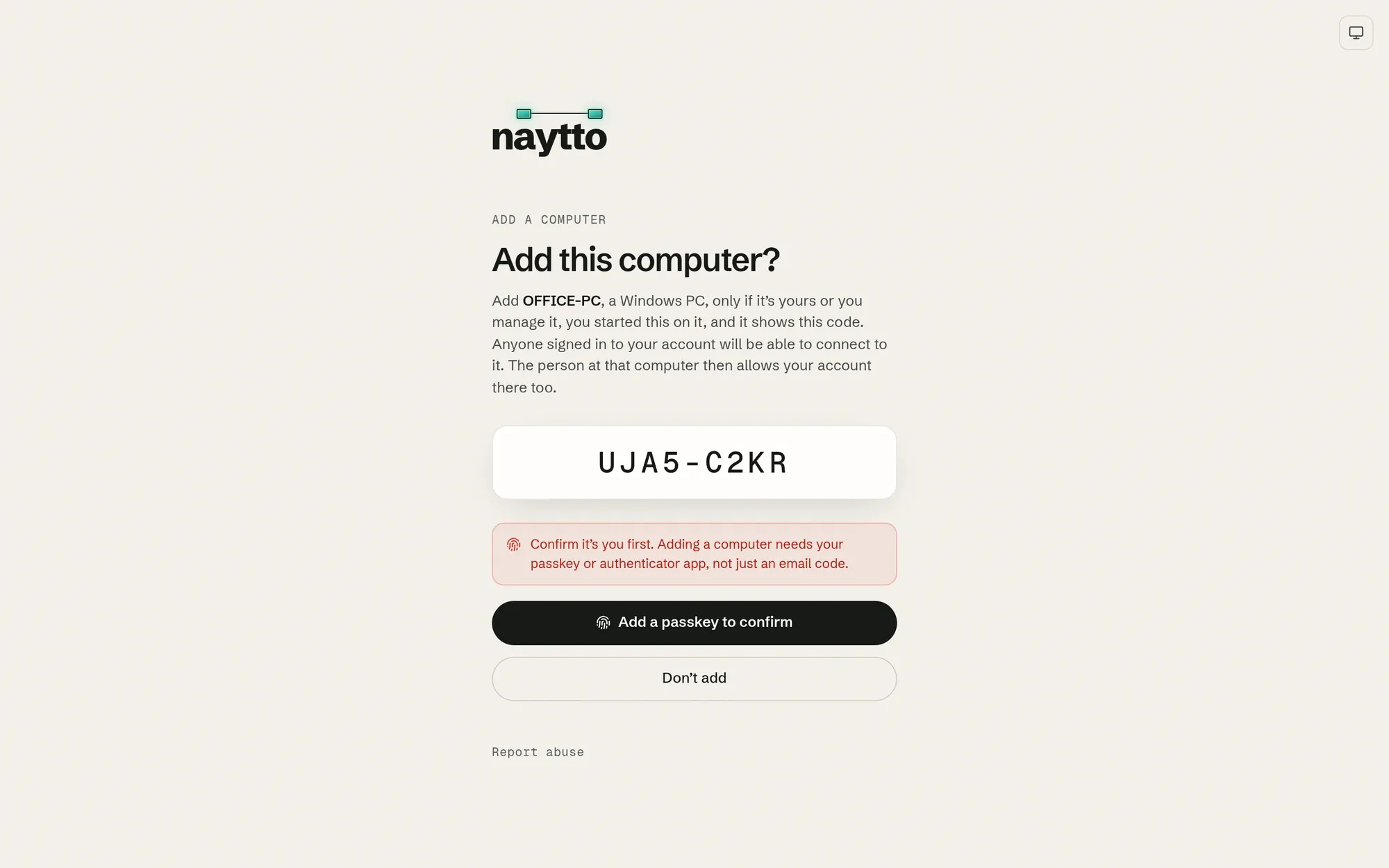
11Confirm it’s you
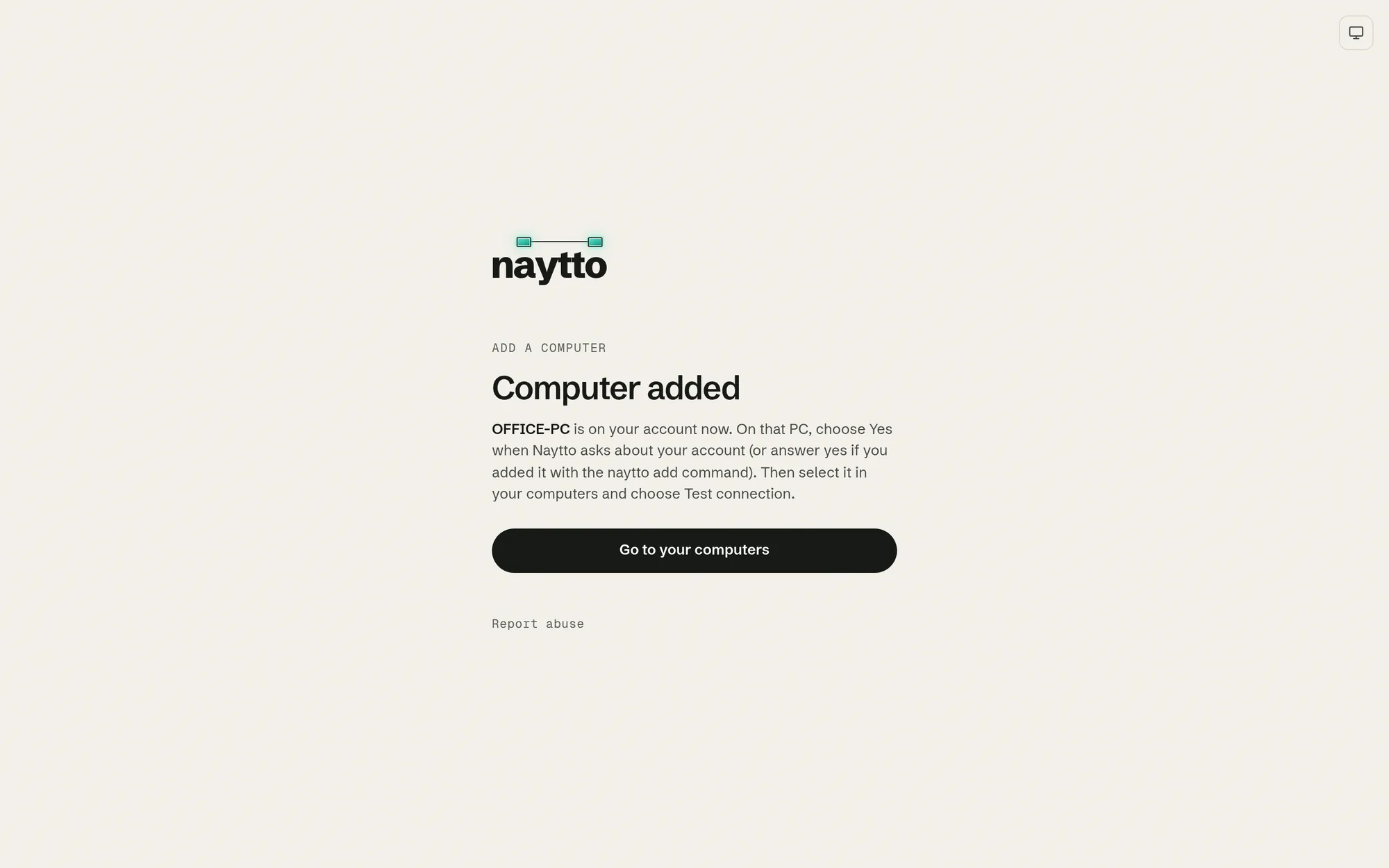
Unless you signed in with your passkey or authenticator app in the last 10 minutes, the page then asks you to confirm it’s you. Choose Add a passkey to confirm: on the PC, Windows asks for your Windows Hello PIN, face or fingerprint to save a passkey, then again to use it. Accept both, and the page says Computer added.
Already have a passkey? The button reads Confirm with your passkey, and your browser only asks you to use it. With an authenticator app, you can choose Sign in again with your authenticator app instead.
12Allow your account on the PC
On the PC, Naytto asks Allow this account to control this computer? with your email address. For a new account, it waits about 10 seconds before asking. Check that the email address is yours and choose Yes. No is the default, so pressing Enter chooses No.
Cancel decides later: Naytto’s icon turns orange, and choosing Allow sam.rivera@example.com…, with your address, in its menu asks again.
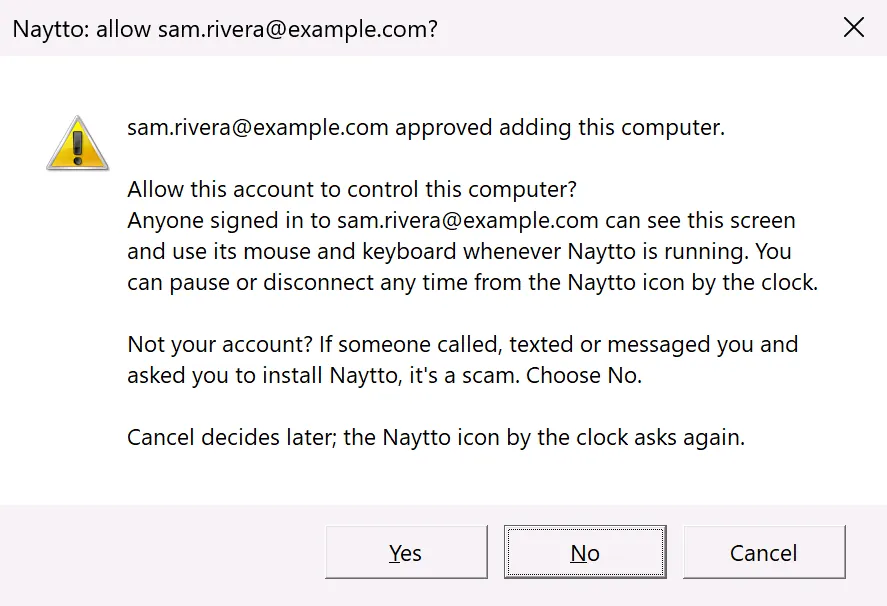
Only add your own PC. If the email address isn’t yours, or someone called, texted or messaged you and asked you to install Naytto, it’s a scam: choose No.
13Check Naytto’s icon
Naytto’s icon turns teal, and its menu reads Reachable from your browser, above Open Naytto in your browser, Pause remote access, Keep this computer reachable, Start Naytto when you sign in and Quit Naytto. The icon is grey while the PC isn’t added, is paused or is offline, and orange when Naytto needs you: to allow an account, or when it can’t show the screen. To keep it in sight, drag it from under ^ onto the taskbar.
Naytto from the zip has no window: this menu is where you control it. Start Naytto when you sign in is ticked now, so Naytto starts whenever you sign in to Windows.
Connect from your browser
From here on, all you need is a browser.
14Choose Connect
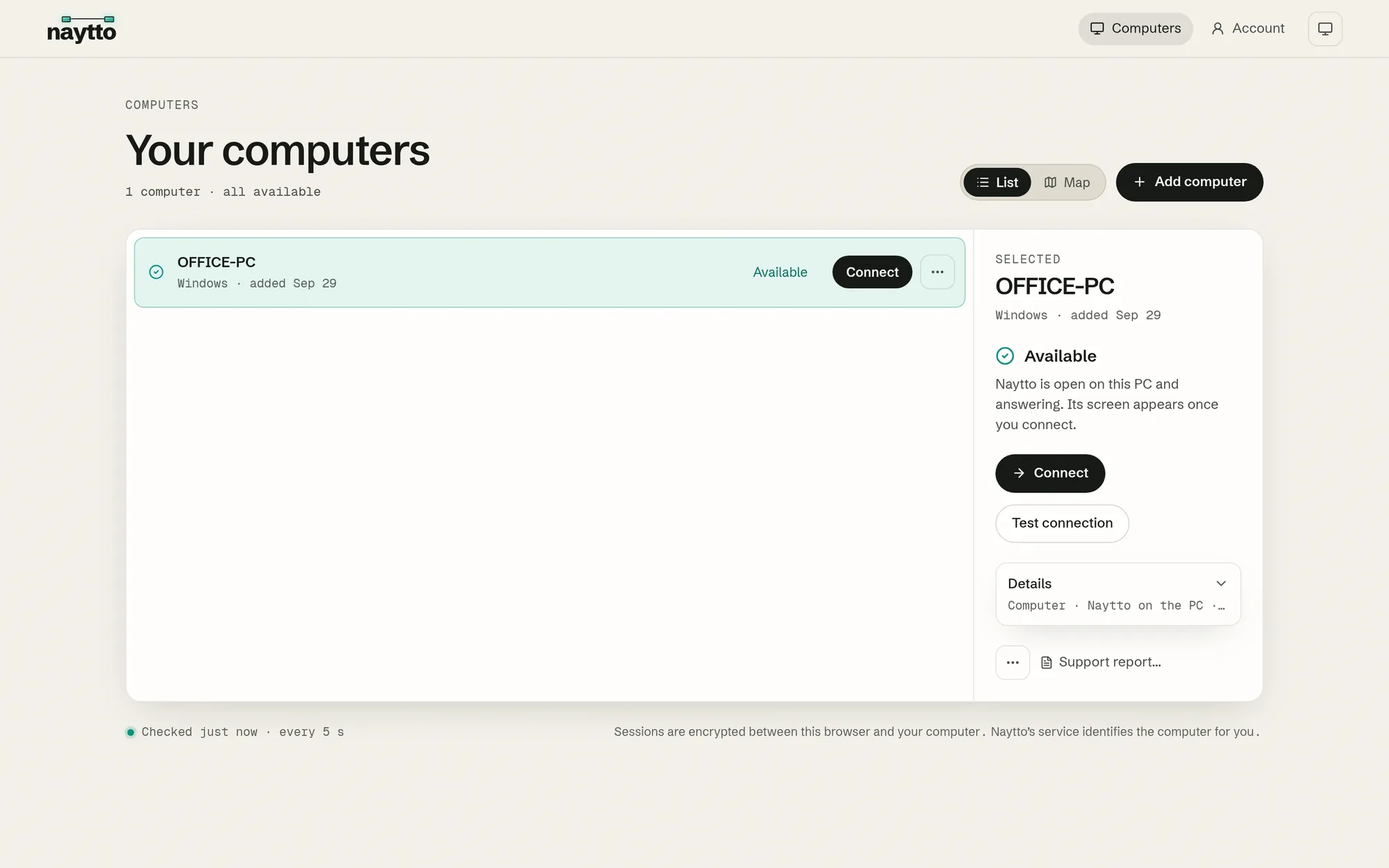
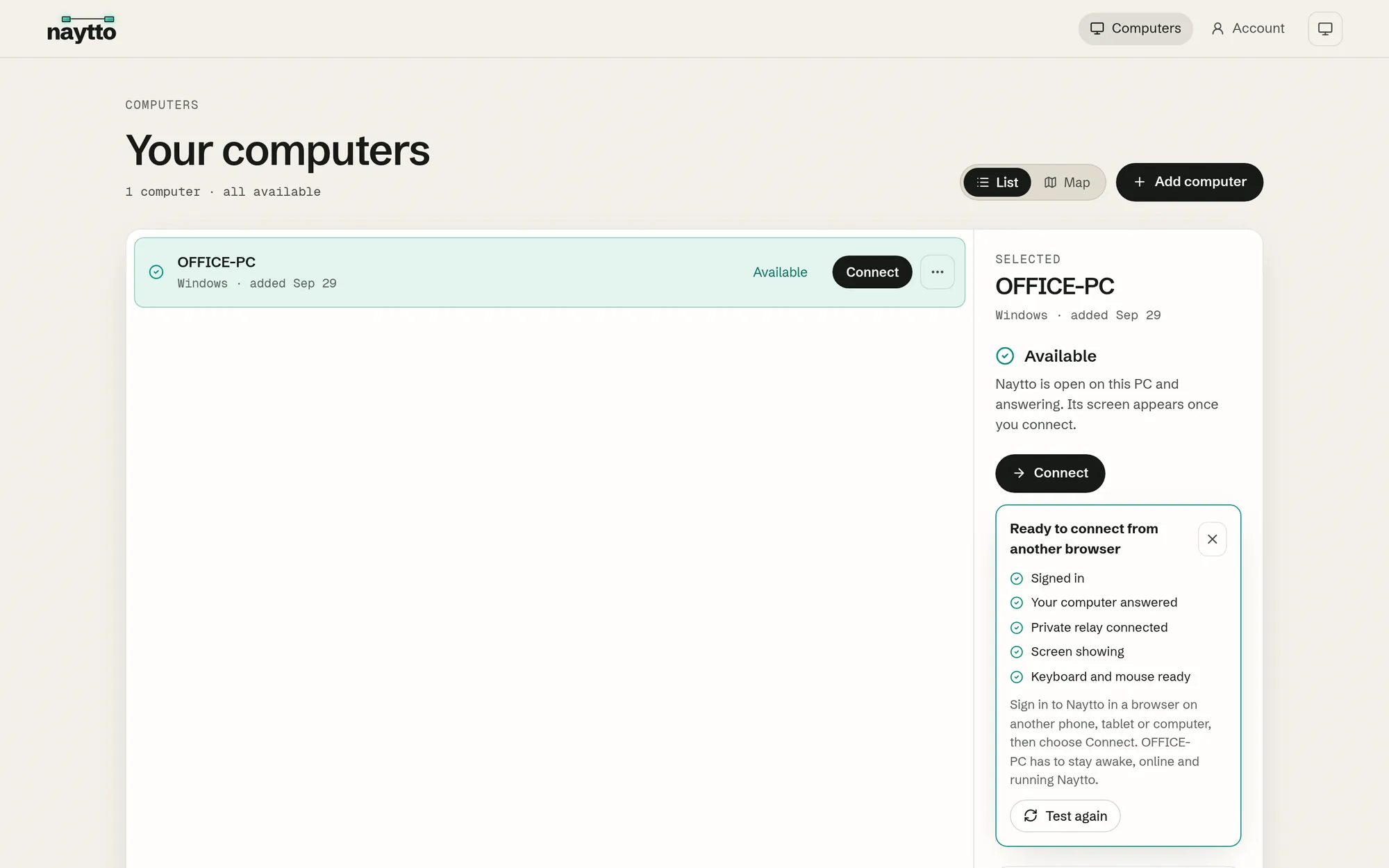
On another device, sign in at app.naytto.com. Your computers lists the PC as Available: Naytto is open on it and answering. Choose Connect.
15Answer Windows Firewall, if it asks
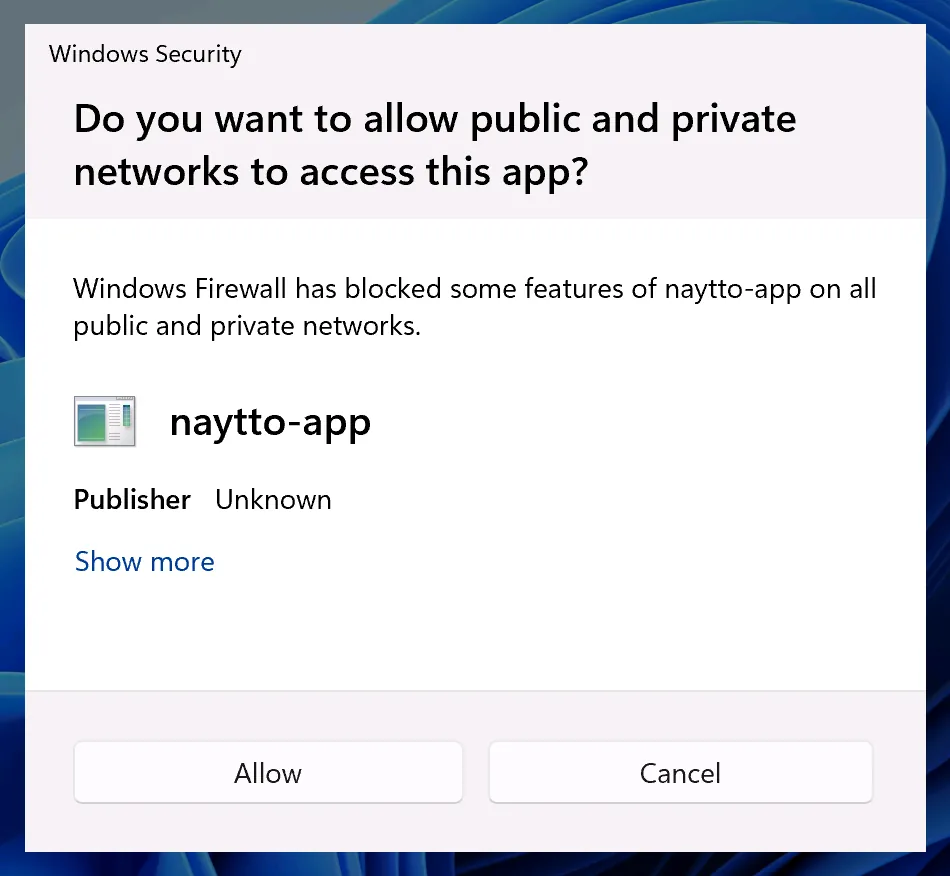
The first time you connect, Windows Firewall may ask Do you want to allow public and private networks to access this app? about naytto-app. Naytto connects only through its private relay, so the session keeps working whichever you choose; Cancel keeps the firewall closed. Allow needs an administrator’s approval if your Windows account isn’t one.
Each time a session starts, a notification on the PC says A browser is controlling this computer, with the account and where it’s connecting from.
16Use its desktop
The desktop of the person signed in to the PC fills the tab. Hold Esc to take the keyboard and pointer back from the PC. The pill at the top of the tab opens the session controls: clipboard, file transfer, Windows shortcuts and full screen. When you’re done, choose Disconnect.
17Test the connection
You can test from any browser, the PC’s own too: on the PC, choose Go to your computers on the Computer added page. In your computers, select the PC and choose Test connection, then Start test. A short session checks sign-in, the private relay, the screen and the keyboard and mouse, then ends; nothing is typed or clicked. The Clipboard and File transfer checks are optional. After a few seconds it says Ready to connect from another browser, with a check beside each of its five lines.
18Connect from your phone
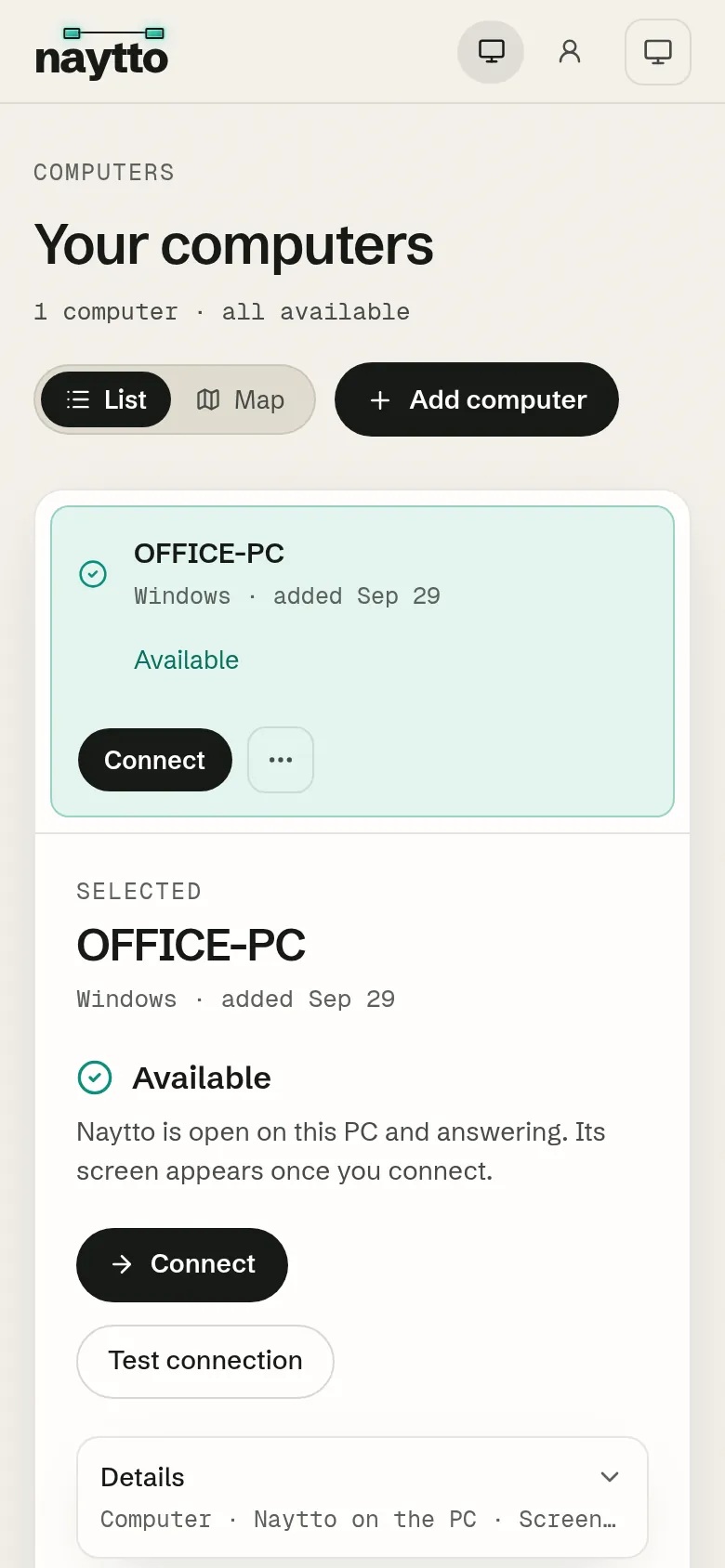
The same page works on a phone or tablet: sign in at app.naytto.com and choose Connect.
Every day
On the PC, everything happens in the menu of Naytto’s icon by the clock. Browsers can reach the PC while you’re signed in to Windows, the PC is unlocked and Naytto is running. Quit Naytto stops it, and browsers can’t reach the PC until you open naytto-app again or next sign in to Windows.
Naytto from the zip doesn’t update itself. To get updates, choose Quit Naytto, then install Naytto from PowerShell as the PowerShell guide shows. The PC stays on your account. That setup asks for administrator approval once, also reaches the PC while it’s locked or at the Windows sign-in screen, and updates when you run its command again.
19End a session from the PC
While a browser is connected, the menu reads In use from a browser, and Disconnect browser appears under Pause remote access. Choose it to end the session.
20Pause remote access
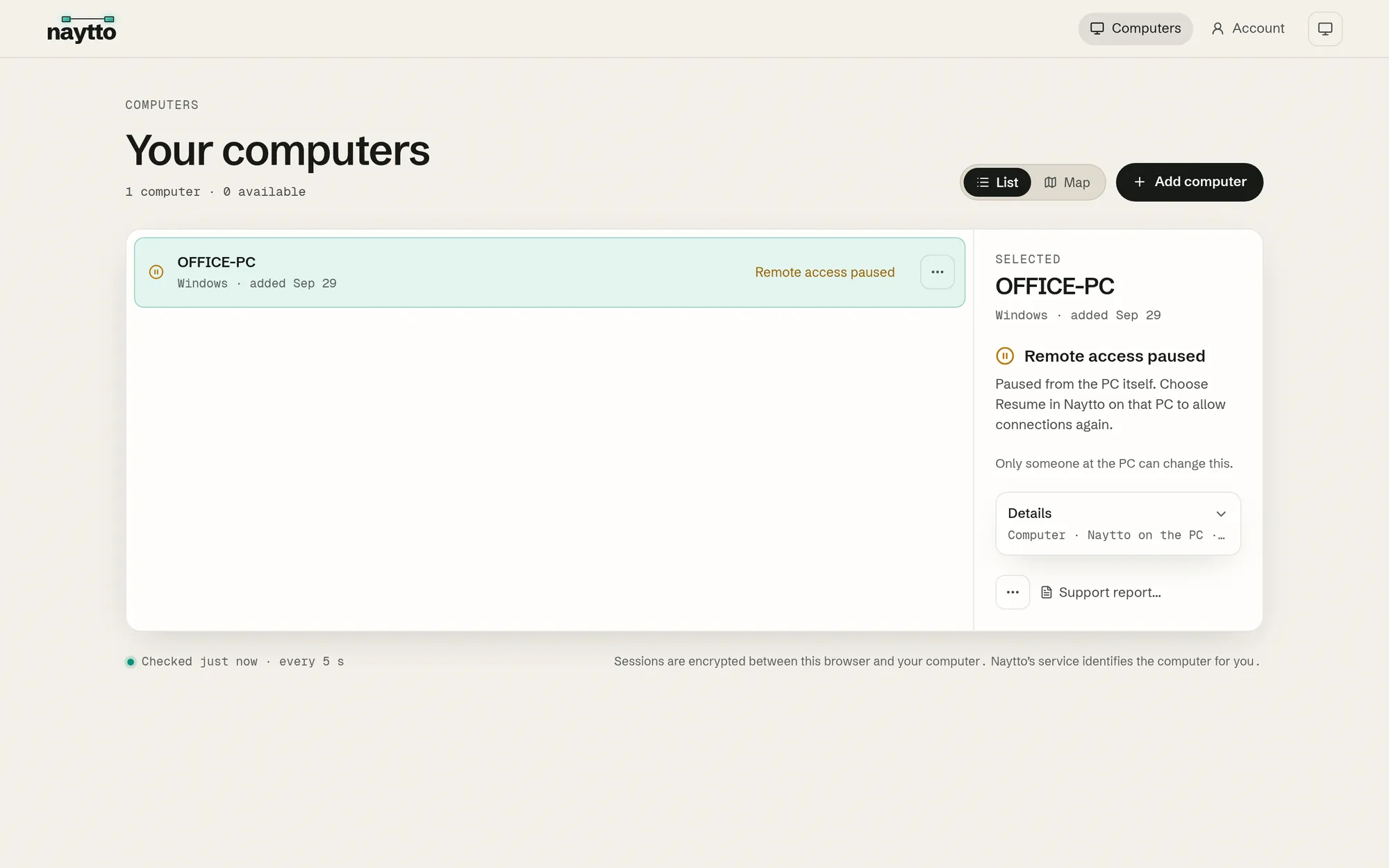
Choose Pause remote access to stop browsers connecting. It takes effect at once: the icon turns grey, and the menu reads Paused: browsers can't connect. In your computers, the PC shows Remote access paused with no Connect button, and says to resume it from Naytto on that PC.
Choose Resume remote access to let browsers connect again. Only someone at the PC can pause or resume.
21Keep the PC reachable
A PC that’s asleep can’t be reached. Choose Keep this computer reachable. A tick appears beside it, and Naytto keeps the PC from sleeping while it’s on your account and remote access isn’t paused. In your computers, the PC’s Details then say While idle: Kept reachable. Choose it again to turn it off.
22Remove the PC from your account
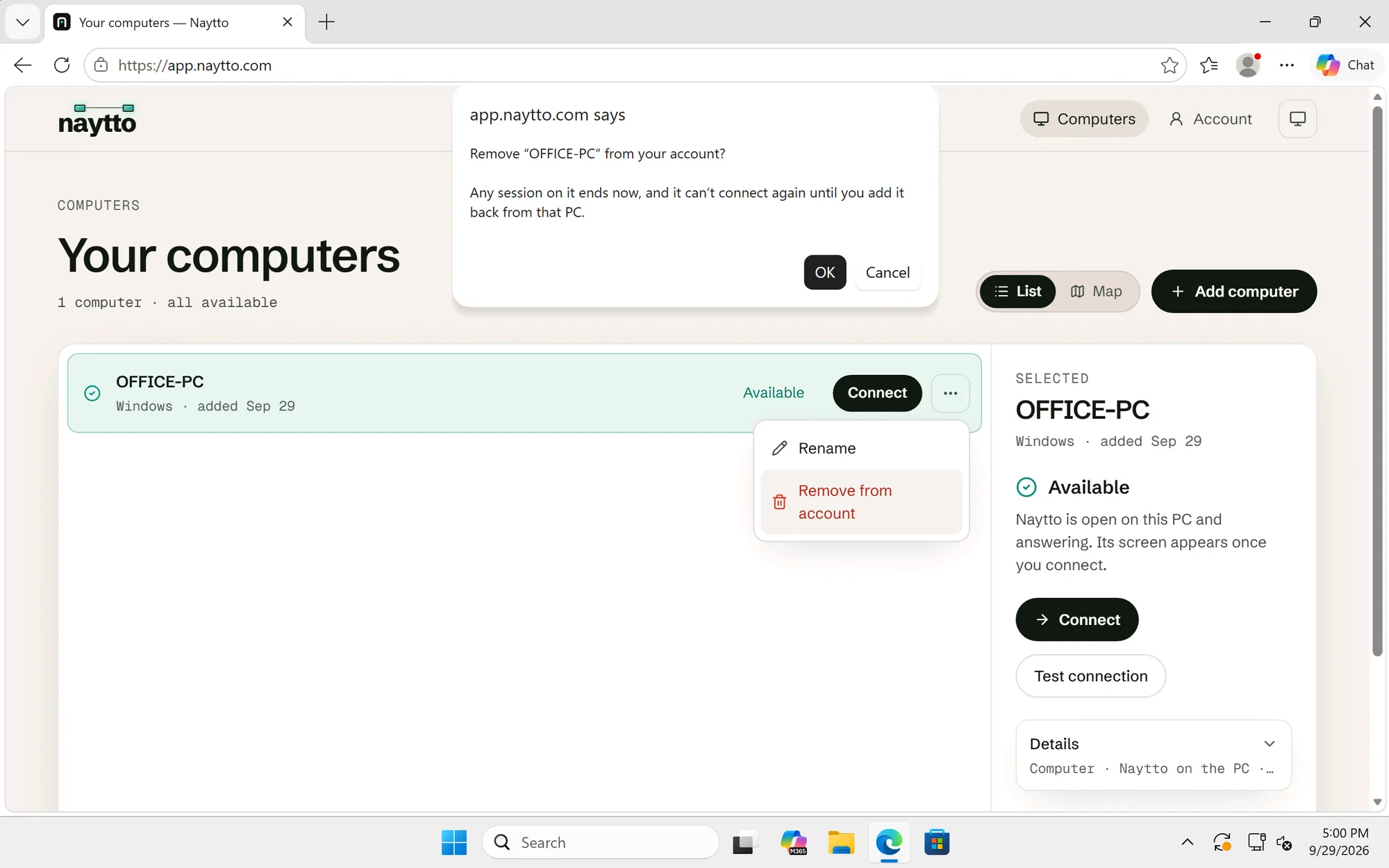
In your computers, in any browser, choose … next to the PC, then Remove from account. The browser asks Remove “OFFICE-PC” from your account?: any session on it ends now, and it can’t connect again until you add it back from that PC. Choose OK. The PC leaves your computers; with no other computers there, the page says No computers yet.
23Add it back, or take Naytto off the PC
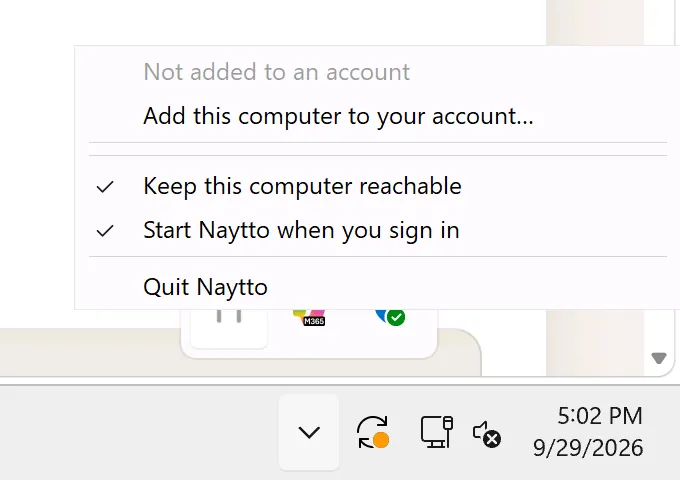
The PC shows no message when it’s removed: its icon turns grey, and the menu reads Not added to an account. To use the PC again, choose Add this computer to your account… and approve it as before.
Start Naytto when you sign in stays ticked, so Naytto still starts when you sign in. To take Naytto off the PC, untick it, choose Quit Naytto, then delete the naytto-windows-x64 folder. Naytto’s settings and log stay behind: type %LOCALAPPDATA% in File Explorer’s address bar and delete the naytto folder there too.
If something isn’t right
- Windows protected your PC. SmartScreen doesn’t recognize Naytto, whose programs aren’t code-signed yet. Choose More info, then Run anyway (step 06).
- Nothing seems to open. Naytto has no window: look for its icon under ^ by the clock. If the page with the code didn’t open, choose Open the approval page again in its menu. Opening naytto-app while it’s running says where its icon is.
- The code ran out. It works for 10 minutes. Then Naytto says The code expired. Start again. Choose Add this computer to your account… in its menu for a new code. For a sign-in code that expired, choose Use a different email or send a new code.
- Asleep, Not responding or Can’t reach. The PC is asleep, off or offline, no one is signed in to Windows, or Naytto isn’t running. Naytto can’t wake a sleeping PC yet. Wake it, sign in, and open naytto-app if its icon isn’t by the clock; then turn on Keep this computer reachable. To reach the PC at the Windows sign-in screen, set it up from PowerShell instead.
- Screen unavailable. The PC is locked, and Naytto from the zip can’t show a locked PC. Unlock it at the PC, or set Naytto up from PowerShell, which can.
- Windows Firewall asks about naytto-app. Either answer works (step 15).
Still stuck? Get help from a person.