GuideLinux · With the app
Set up Naytto on a Linux computer
For an Ubuntu 24.04 computer with a desktop that you’re sitting at. You download Naytto, install it with App Center, add the computer to your account, then connect from a browser on another device. It takes about 10 minutes.
Before you start
- A computer with Ubuntu 24.04 and a desktop, on x86-64 or ARM64, and the password you sign in to it with. Once it’s set up, it needs no monitor.
- An email address. If you don’t have a Naytto account yet, your first sign-in creates one and starts your free 14-day trial.
- A passkey or an authenticator app for your account. If you have neither, your browser offers to save a passkey when you approve the computer.
- Another device with a browser, such as a laptop, tablet or phone, to approve the computer and to connect from.
The app is on the download page. Setting up over SSH, or on a server with no desktop? Follow Set up Naytto on a Linux computer from a terminal instead.
Install Naytto
Naytto comes as a package for Ubuntu, and App Center installs it in a few clicks.
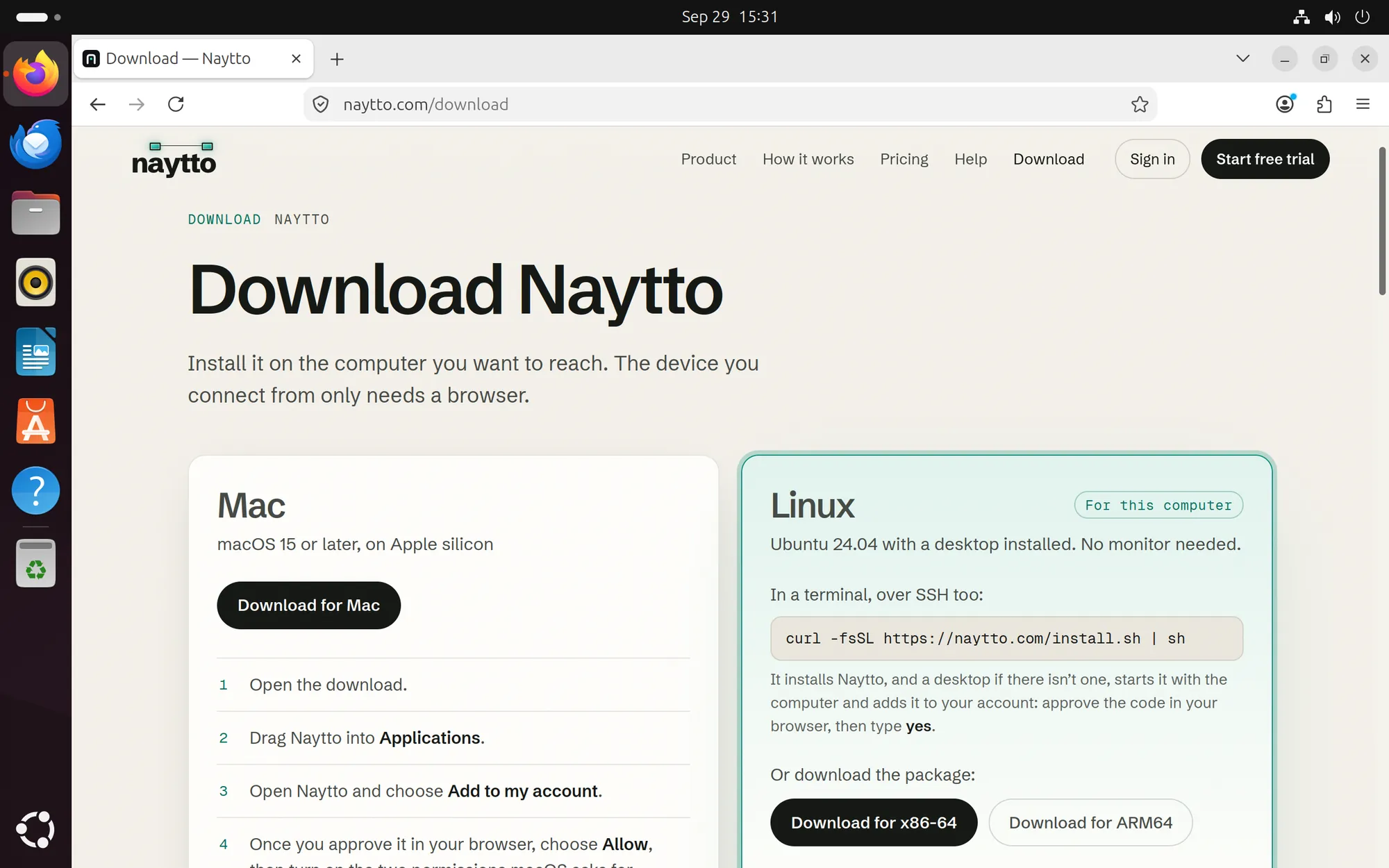
01Download the package
On the computer, open naytto.com/download in Firefox. Under Linux, choose the button for its processor: Download for x86-64 on Intel and AMD processors, or Download for ARM64 on an ARM computer.
On your first visit, a banner asks whether the site may measure visits with Google Analytics. Accept and Reject both work.
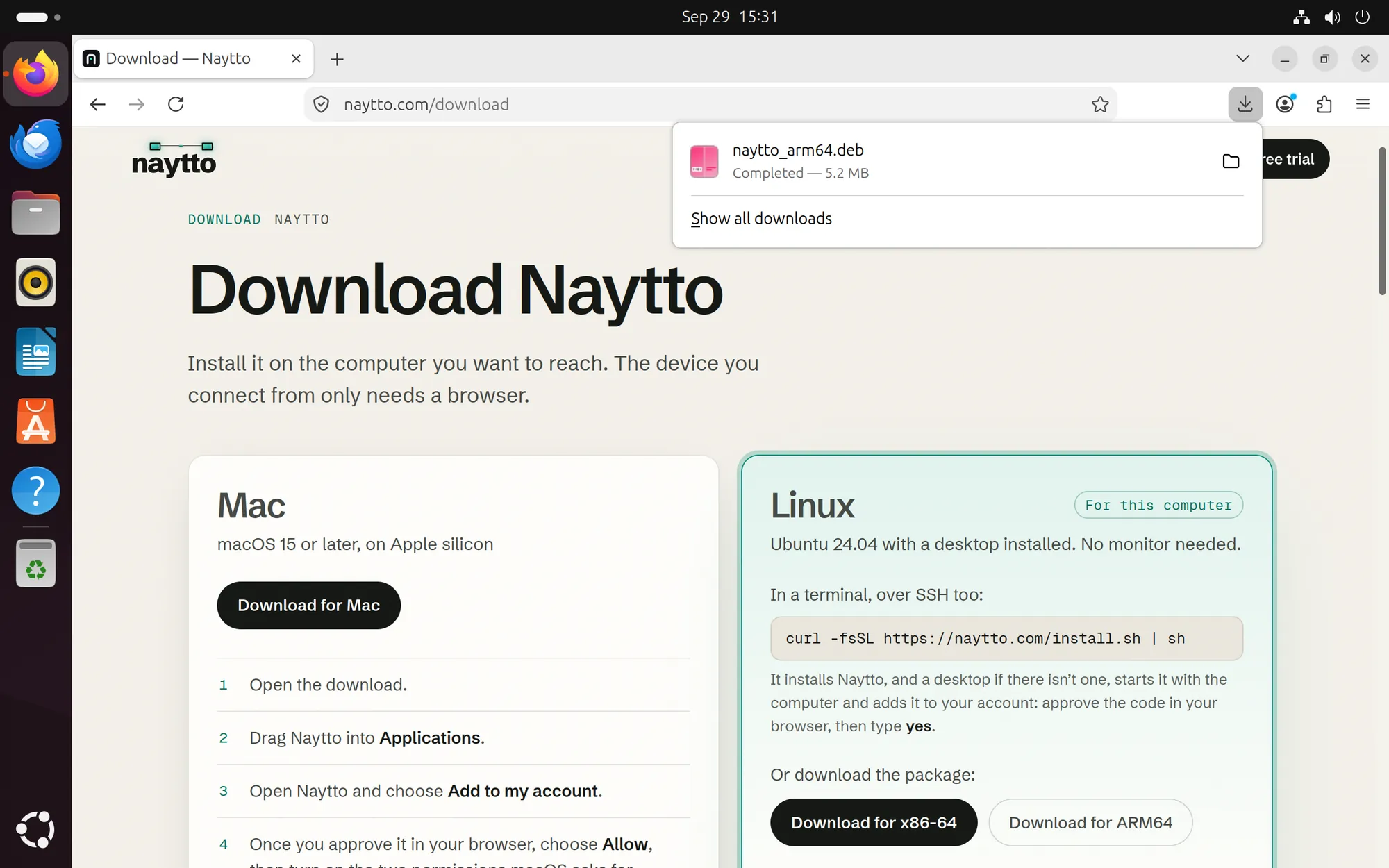
02Open your Downloads folder
When Firefox shows Completed, choose the folder icon at the right of the file. Files opens Downloads with the package selected.
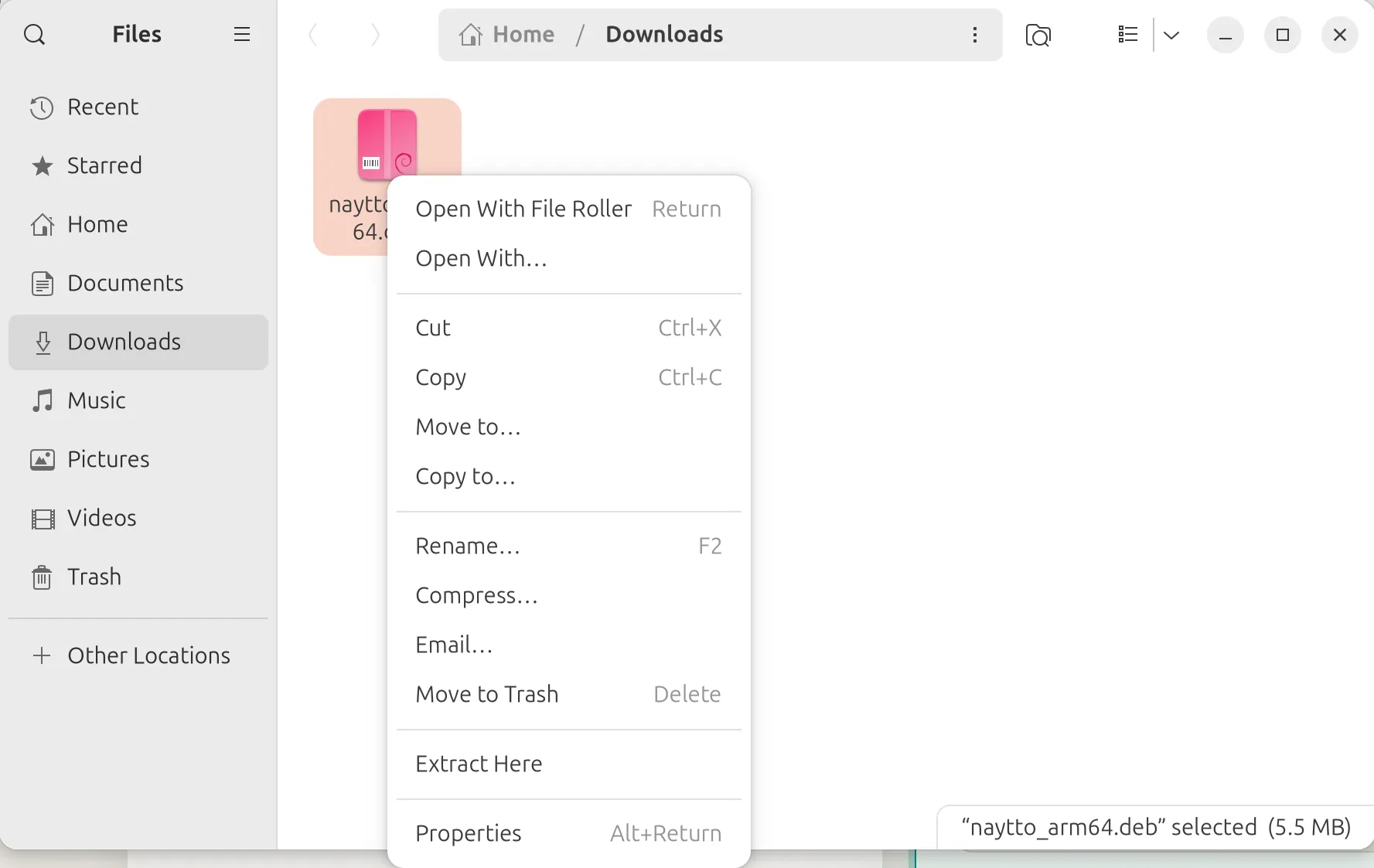
03Open it with App Center
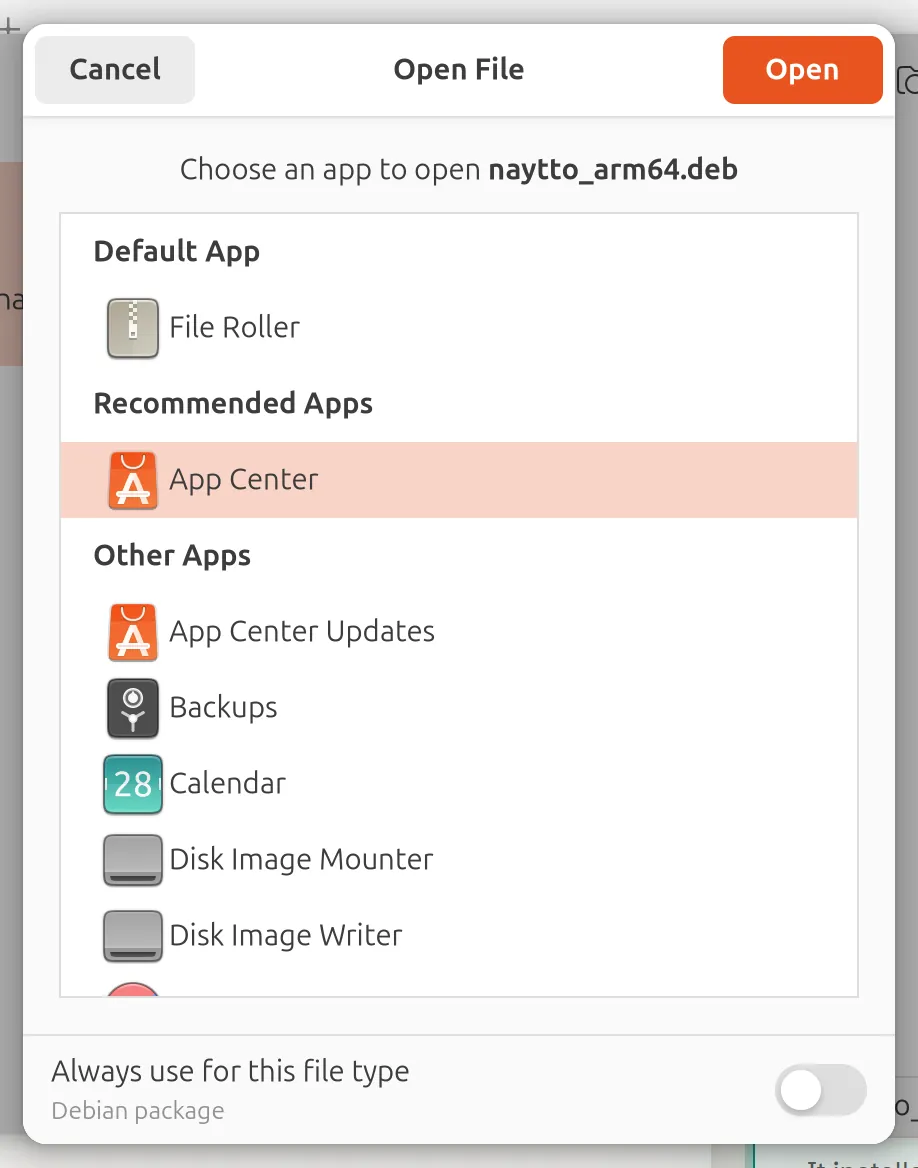
Right-click the package and choose Open With…. Under Recommended Apps, choose App Center, then Open at the top right. Double-clicking the package opens Archive Manager instead, which can’t install it.
04Install it
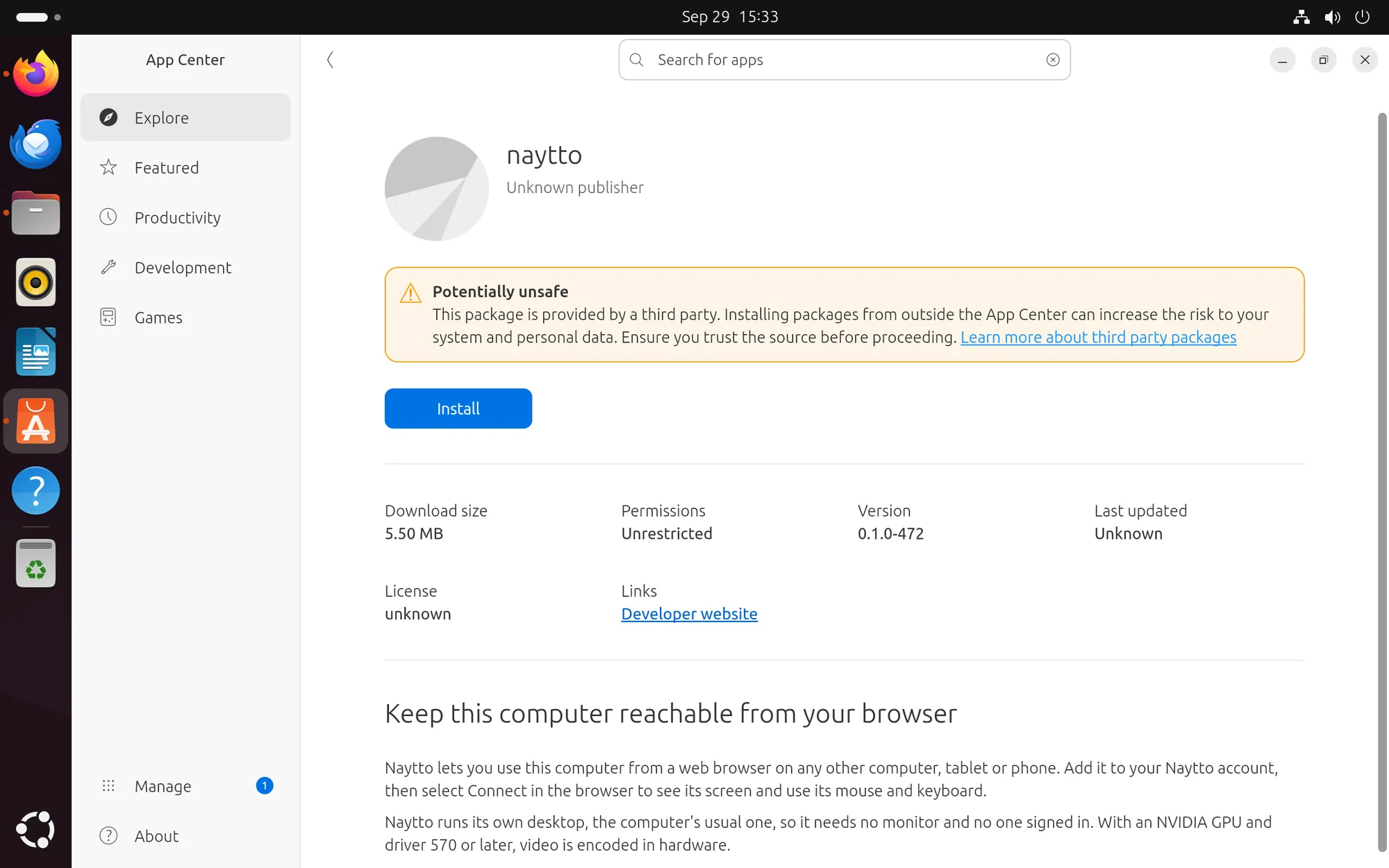
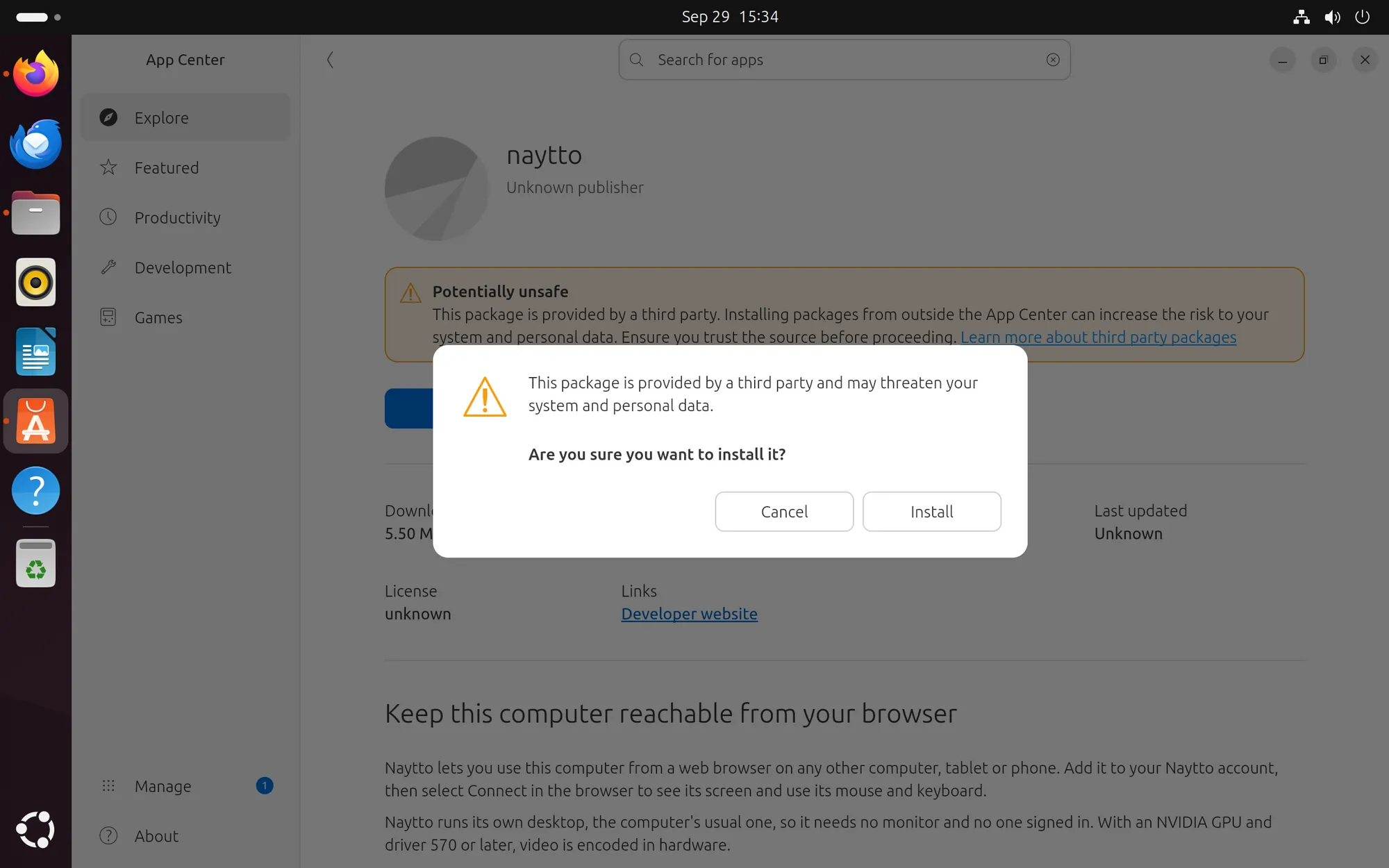
App Center opens the naytto package. Its Potentially unsafe notice is App Center’s warning for packages from outside App Center; this one comes from naytto.com. Choose Install, then Install again when App Center asks Are you sure you want to install it?
05Confirm with your password
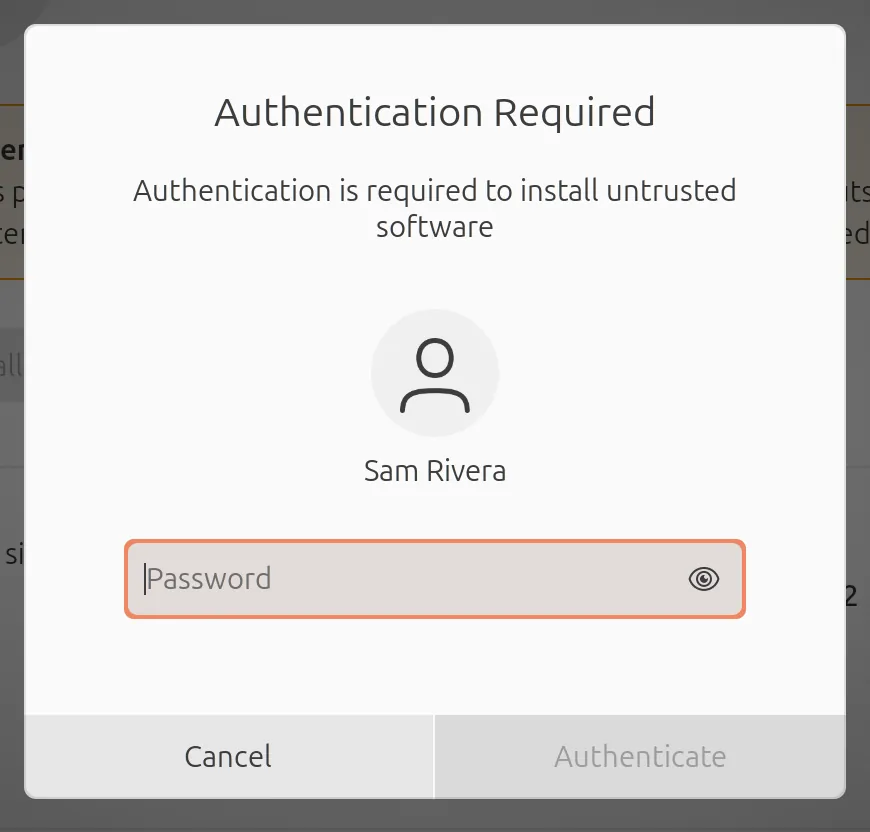
Type the password you sign in to this computer with and choose Authenticate. After about 15 seconds the button reads Installed, and you can close App Center.
Prefer a terminal? Instead of steps 03 to 05, go to your Downloads folder (cd ~/Downloads) and run the command from the download page: sudo apt install ./naytto_amd64.deb On ARM64, use naytto_arm64.deb. Type your password when sudo asks for it.
06Open Naytto
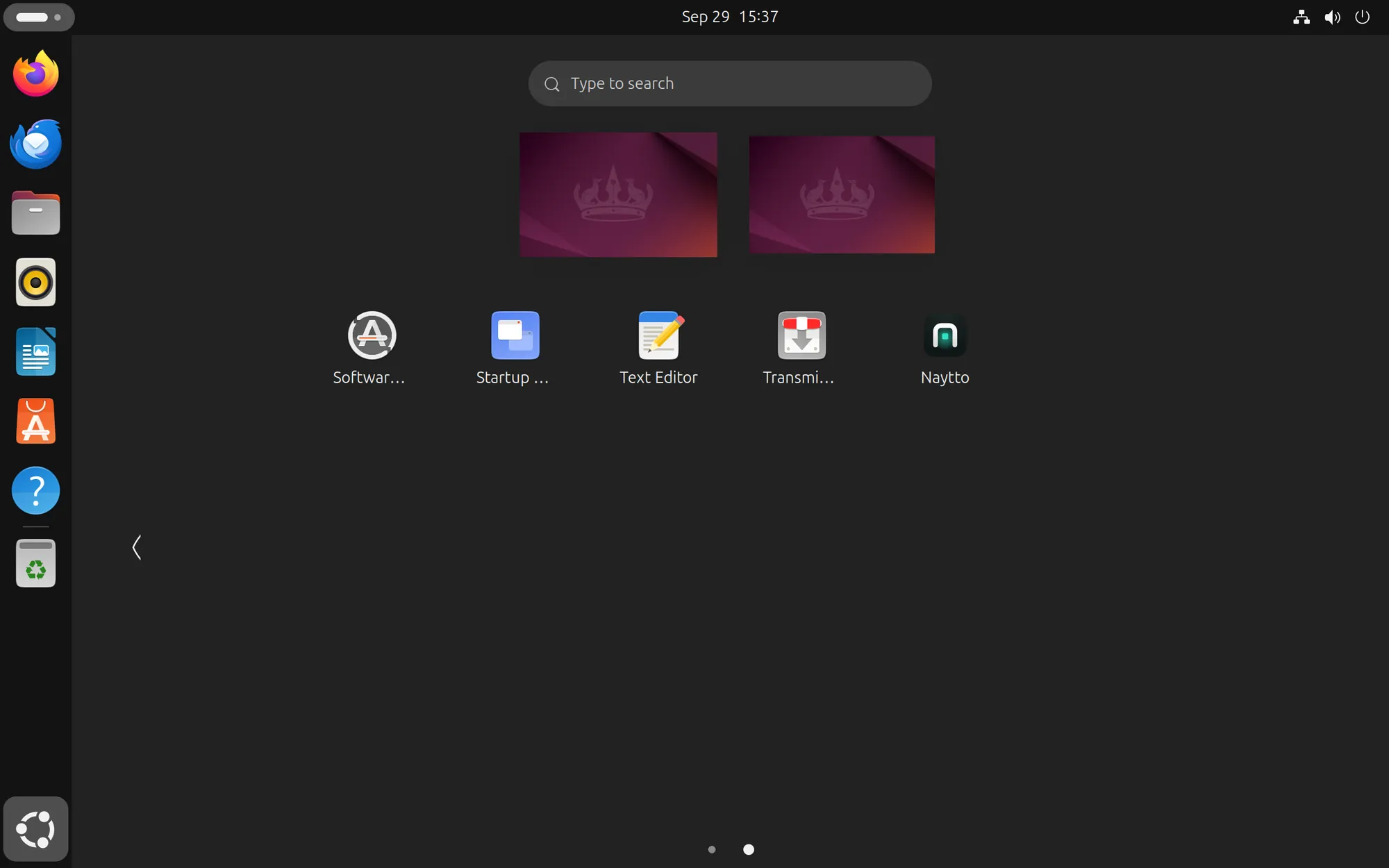
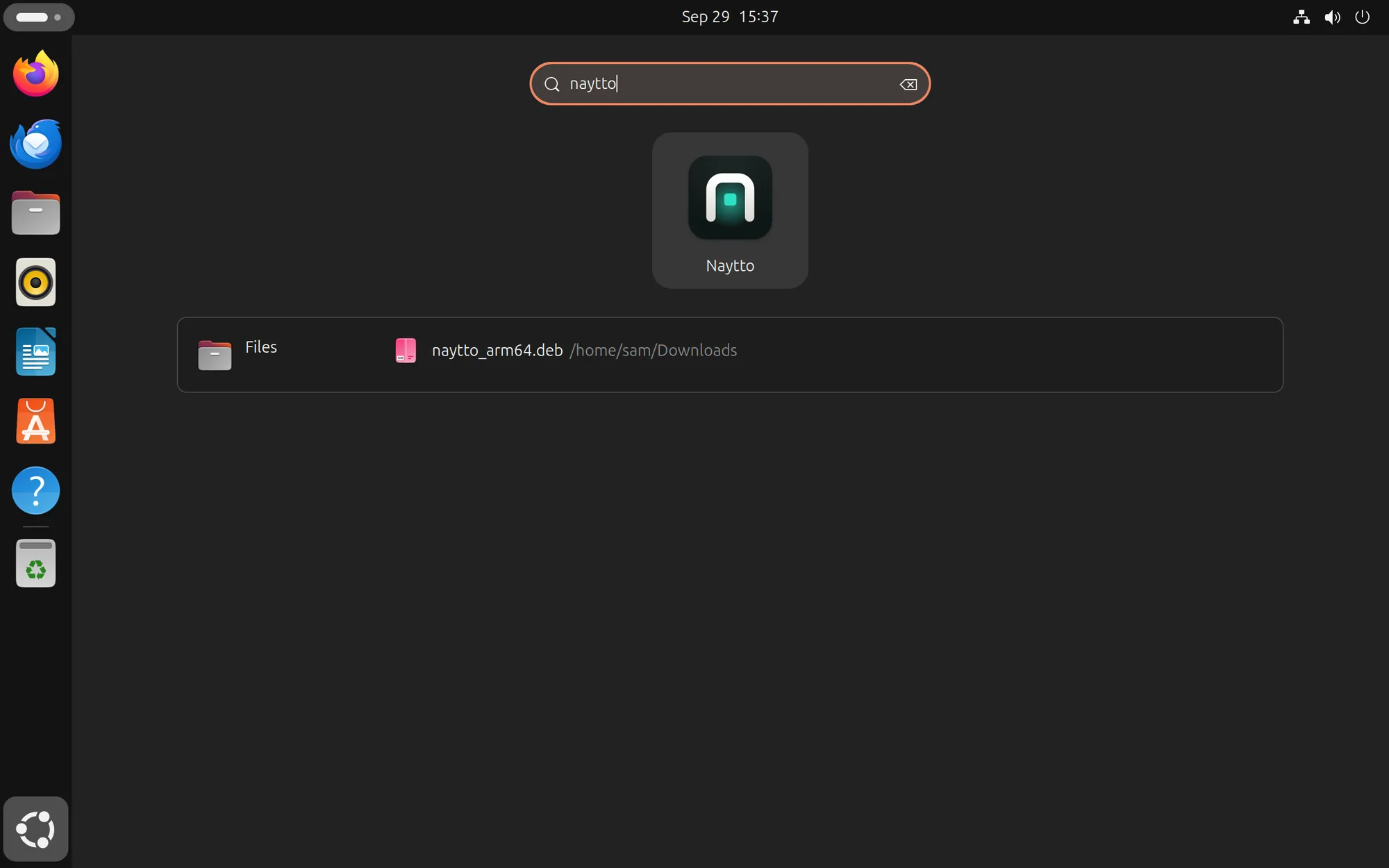
Choose Show Apps at the bottom of the dock. New apps go at the end of the grid, so on a new Ubuntu install Naytto is on the second page. Or start typing naytto and choose Naytto.
Add it to your account
You start on the computer, approve a code in a browser, then allow your account back on the computer.
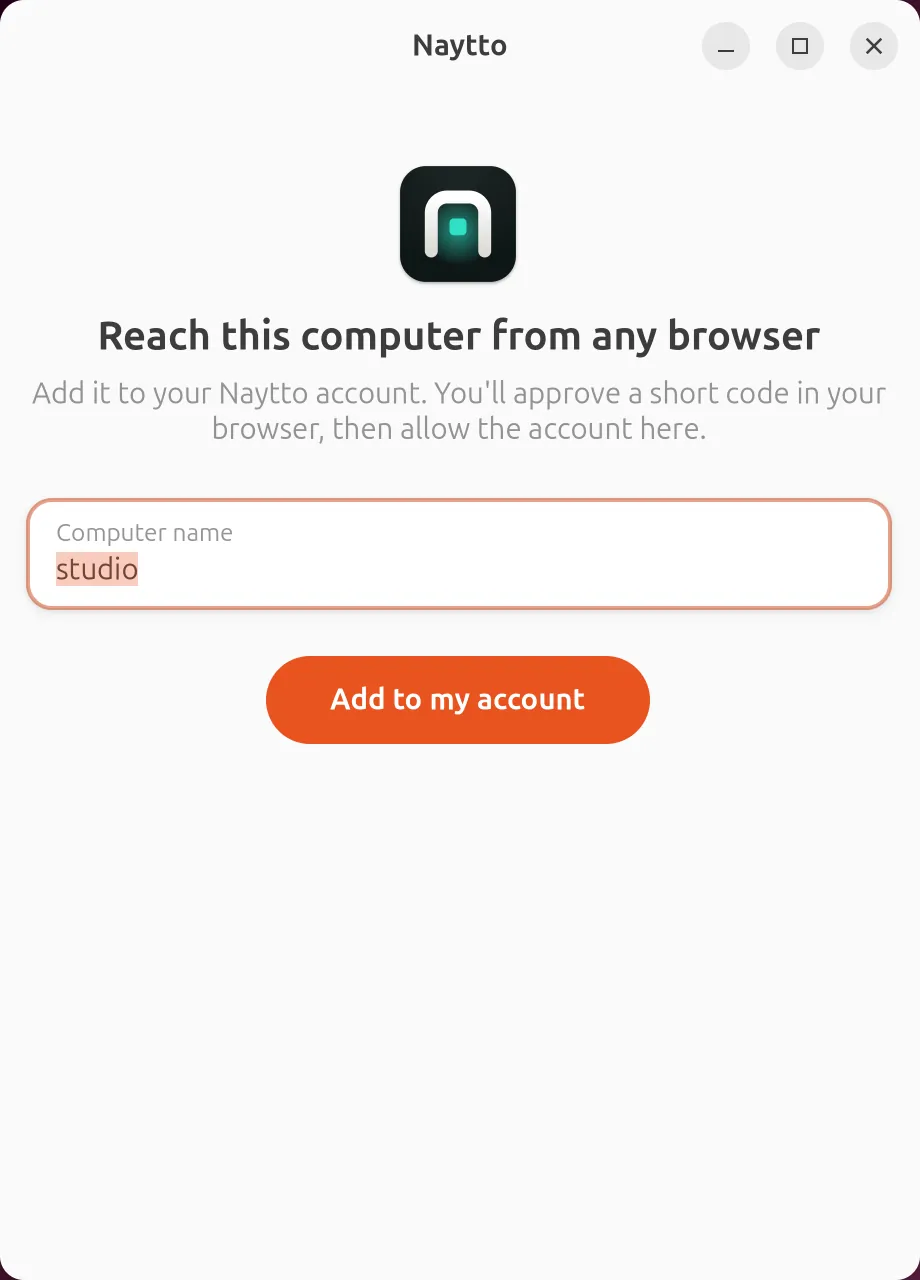
07Choose Add to my account
The Naytto window opens with Computer name filled in from the computer’s own name, here studio. It’s the name you’ll see in your browser. Change it if you like, then choose Add to my account.
08Open the address on your phone, tablet or laptop
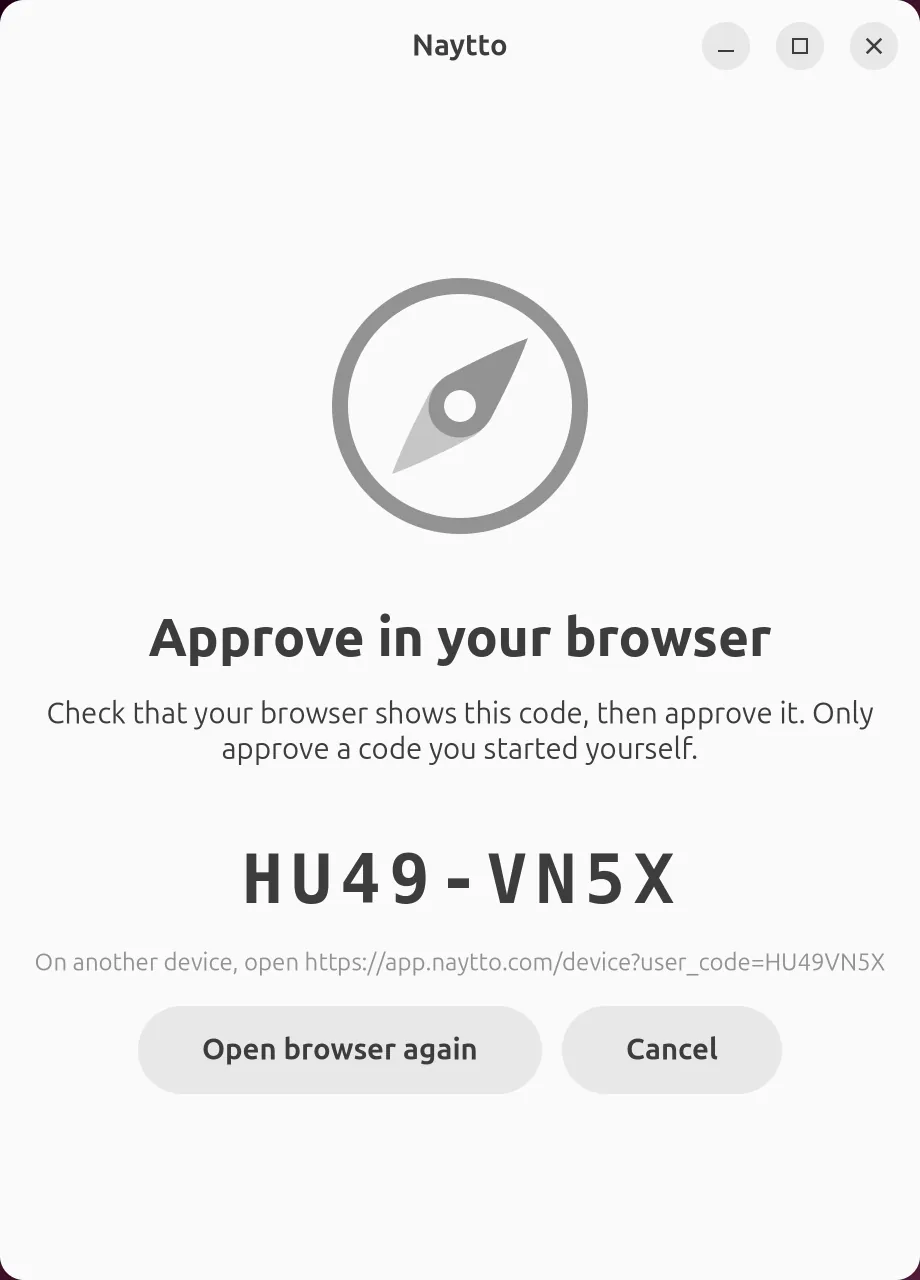
The window shows a code and, under it, an address. On your phone, tablet or laptop, open that address. A phone is simplest, since it can save the passkey that step 12 asks for.
To approve on this computer instead, use the browser page Naytto opens, or choose Open browser again if none opened. Leave the Naytto window open; the code works for 10 minutes.
09Sign in with your email
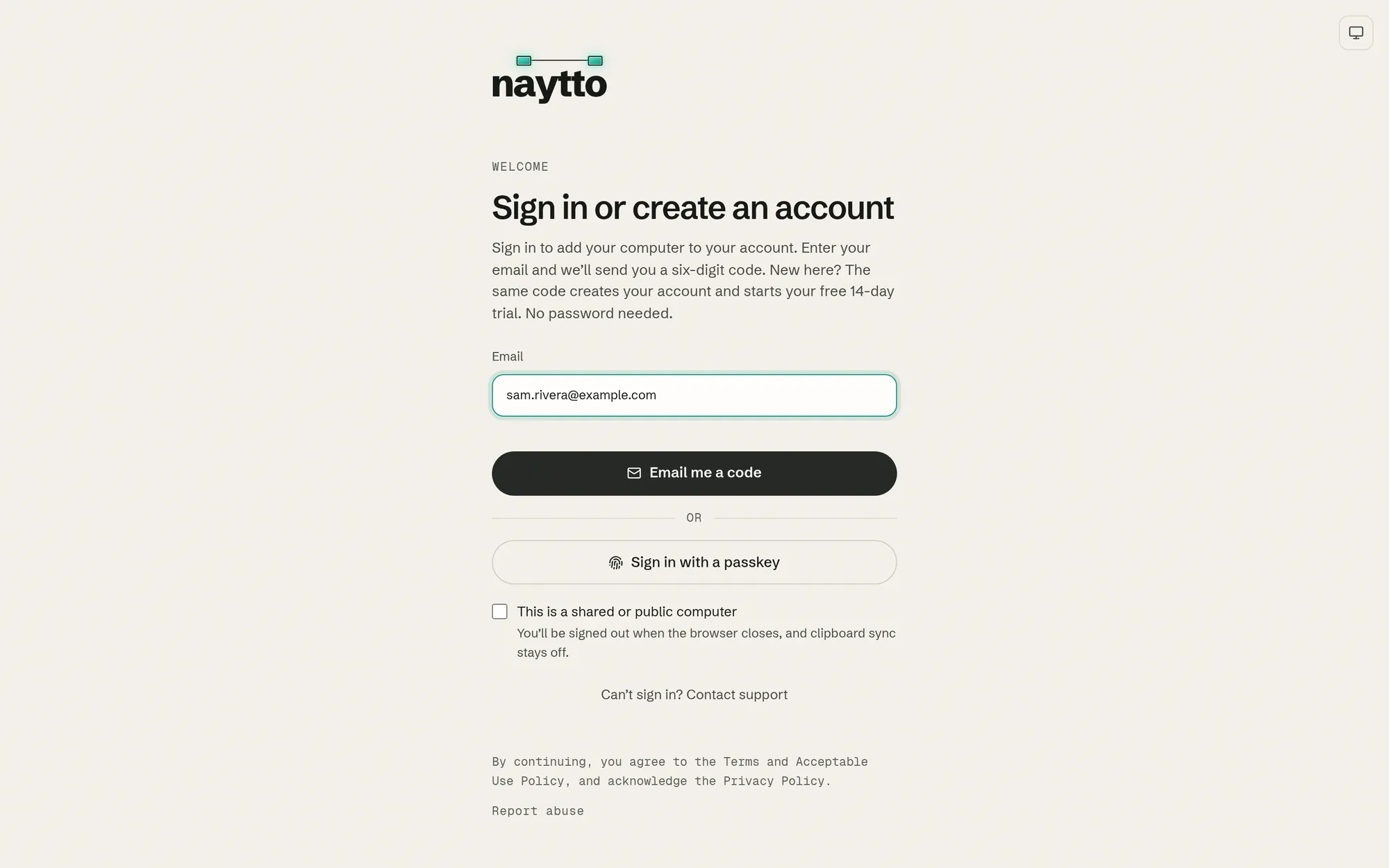
The address opens Sign in or create an account. Type your email address and choose Email me a code. The button reads Checking this browser… for a moment first; if a Verify you are human box appears, tick it. New to Naytto? The same code creates your account and starts your free 14-day trial.
10Enter the code from the email
Naytto emails you a six-digit code; the subject line starts with it. Type it in Sign-in code and choose Sign in. The code expires in 10 minutes. If you don’t see the email, check your spam folder.
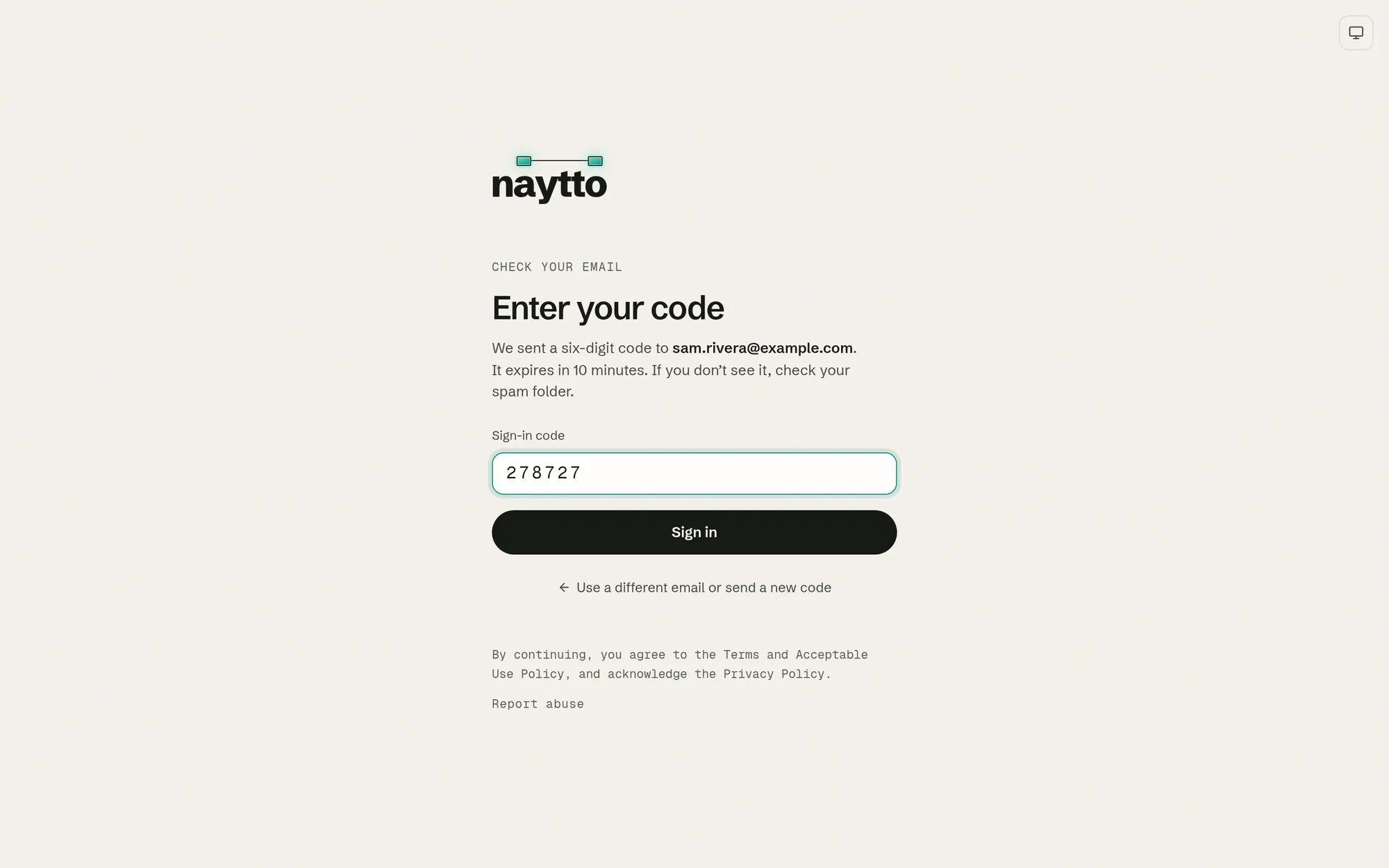
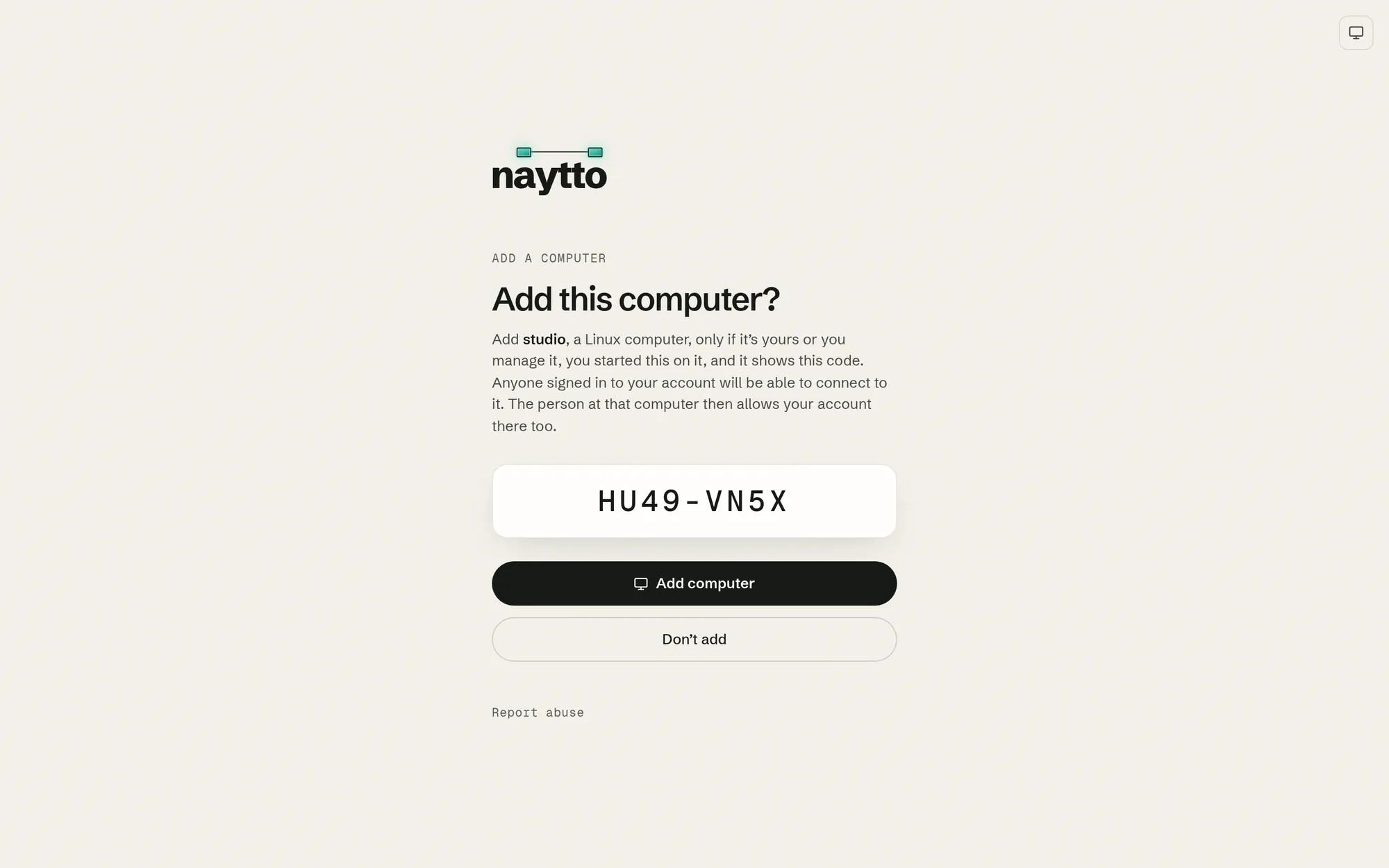
11Check the code and add the computer
The page asks Add this computer? and names the computer, here studio. Check that its code matches the one in the Naytto window, then choose Add computer. Only approve a code you started yourself.
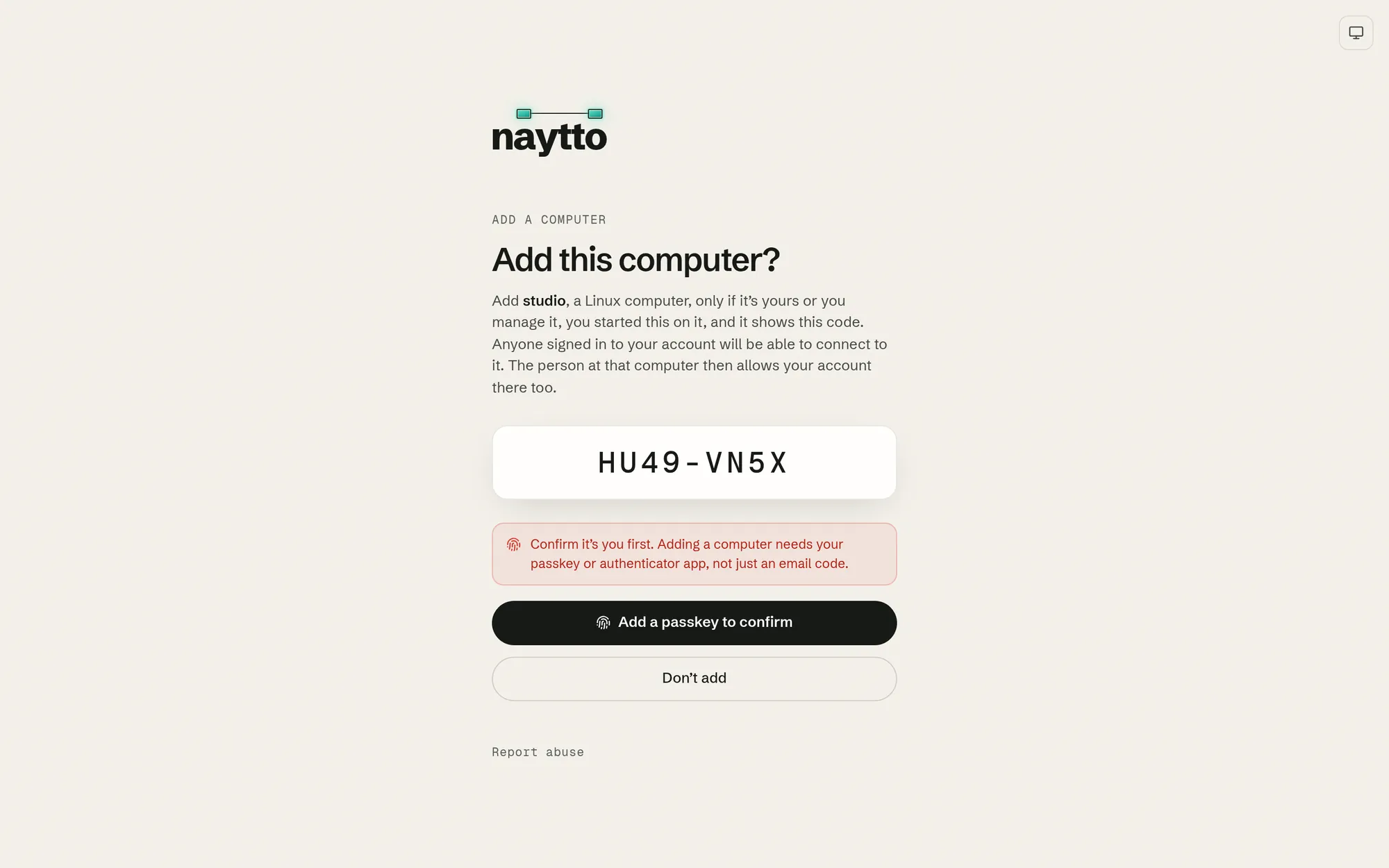
12Confirm it’s you
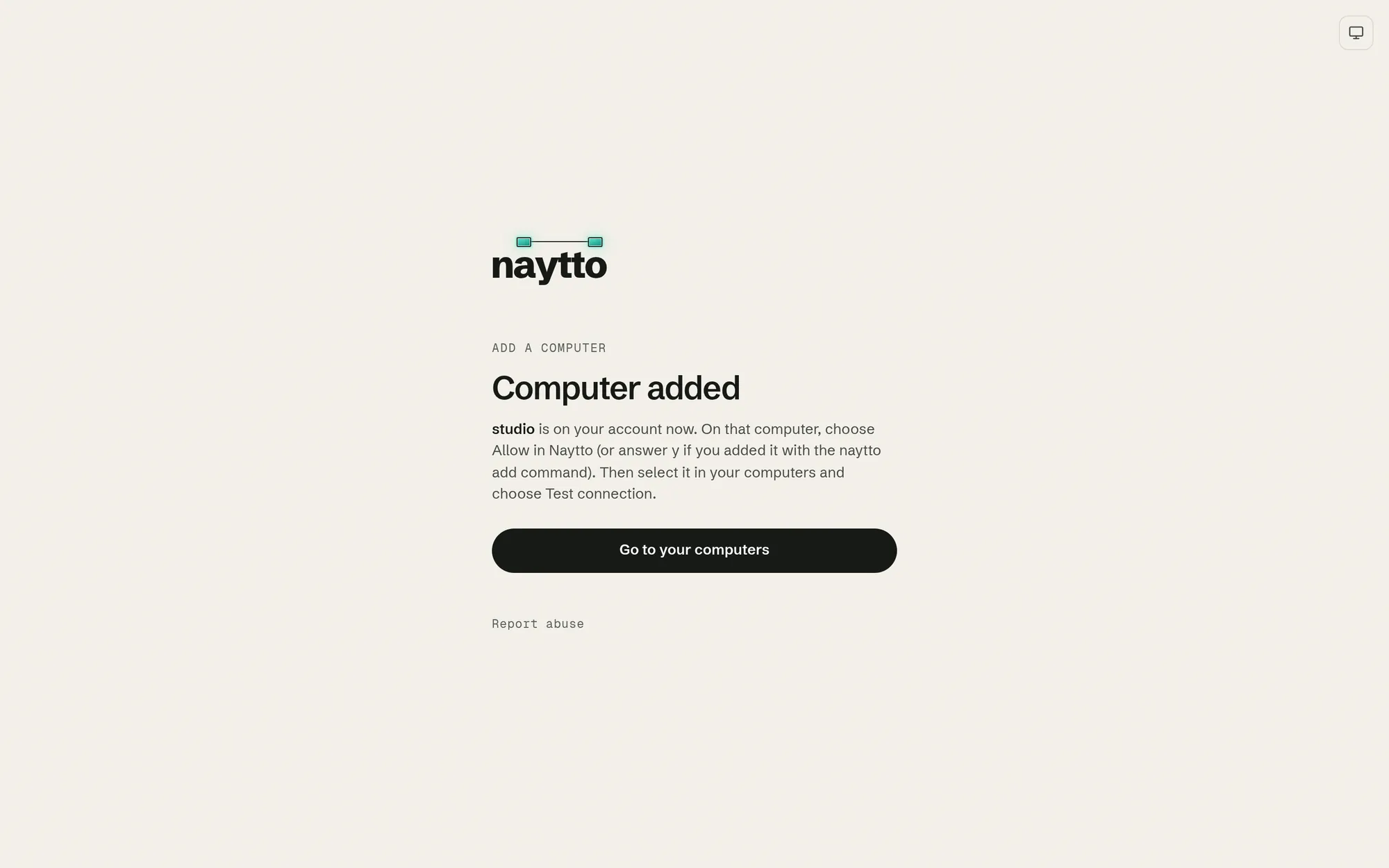
Unless you signed in with your passkey or authenticator app in the last 10 minutes, the page then asks you to confirm it’s you. Choose Add a passkey to confirm: your browser asks to save a passkey, then to use it. Accept both, and the page says Computer added.
Already have a passkey? The button reads Confirm with your passkey, and your browser only asks you to use it. With an authenticator app, you can choose Sign in again with your authenticator app instead.
13Allow your account on the computer
Back at the computer, the Naytto window asks Allow this account to control this computer? with your email address. For a new account, Allow counts down for a few seconds first. Check that the email address is yours and choose Allow.
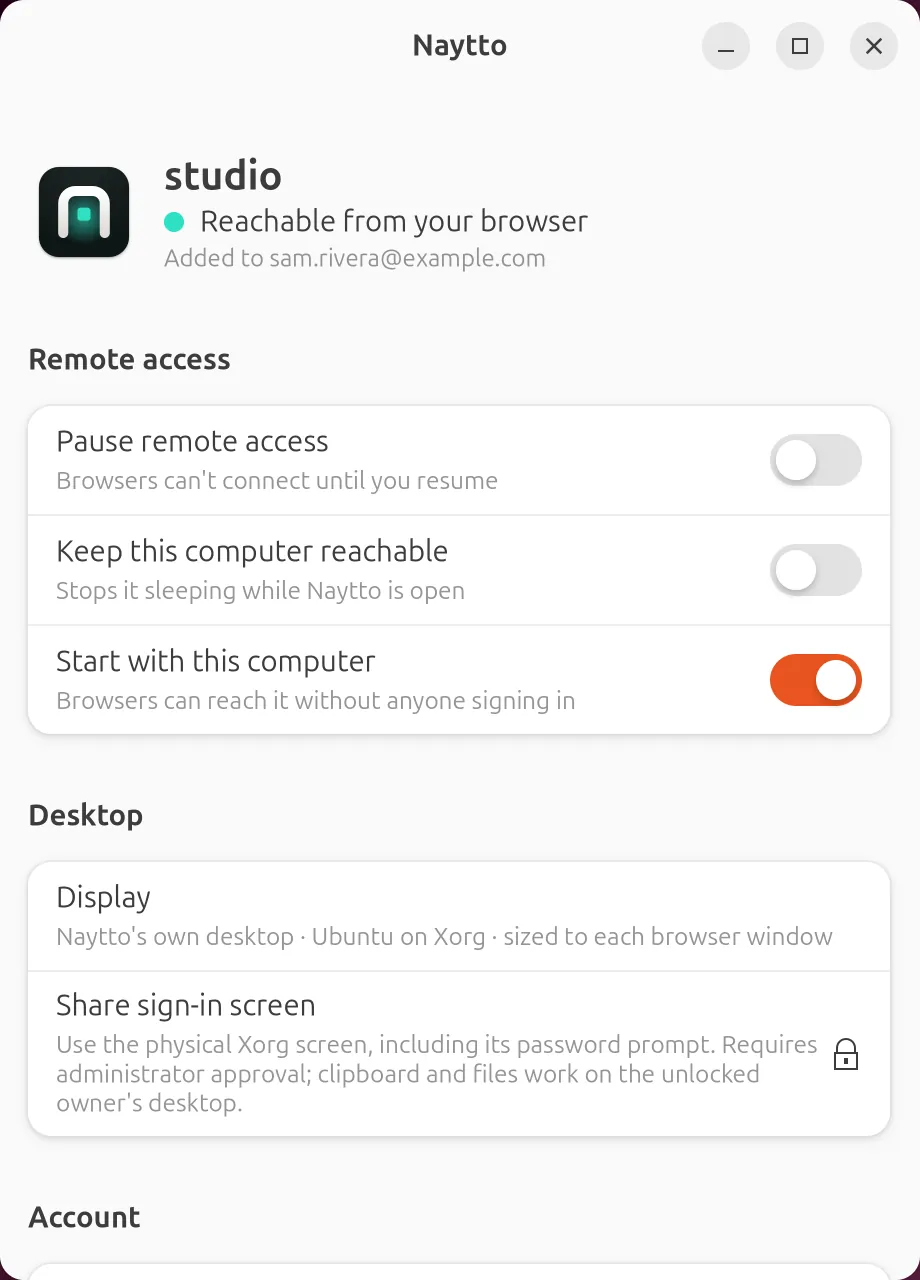
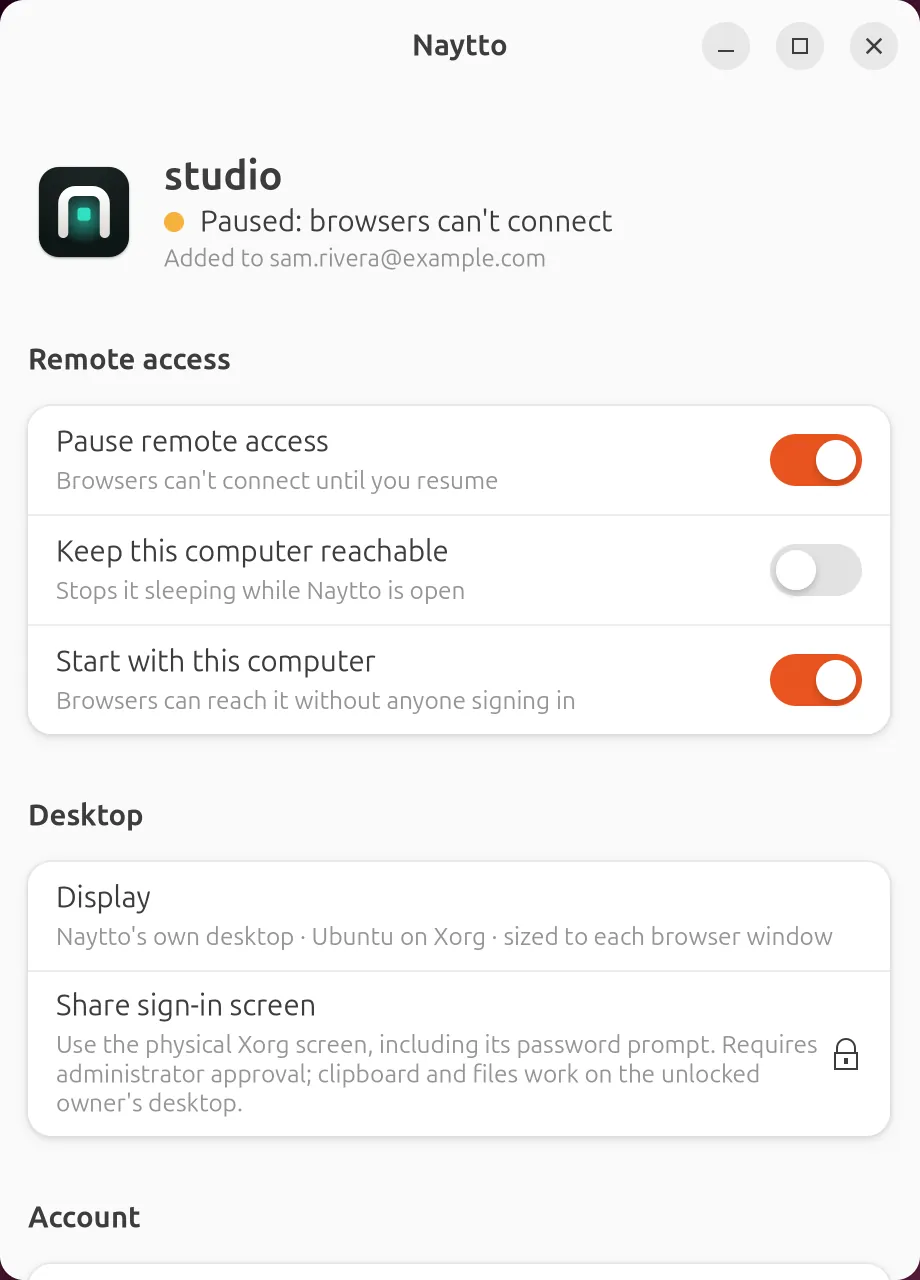
The window then says Reachable from your browser. To connect while the computer is idle, switch on Keep this computer reachable, or switch off automatic suspend in Ubuntu’s power settings.
Start with this computer is on, so from the next restart Naytto starts with the computer and browsers can reach it without anyone signing in. Until then, stay signed in, or restart the computer once.
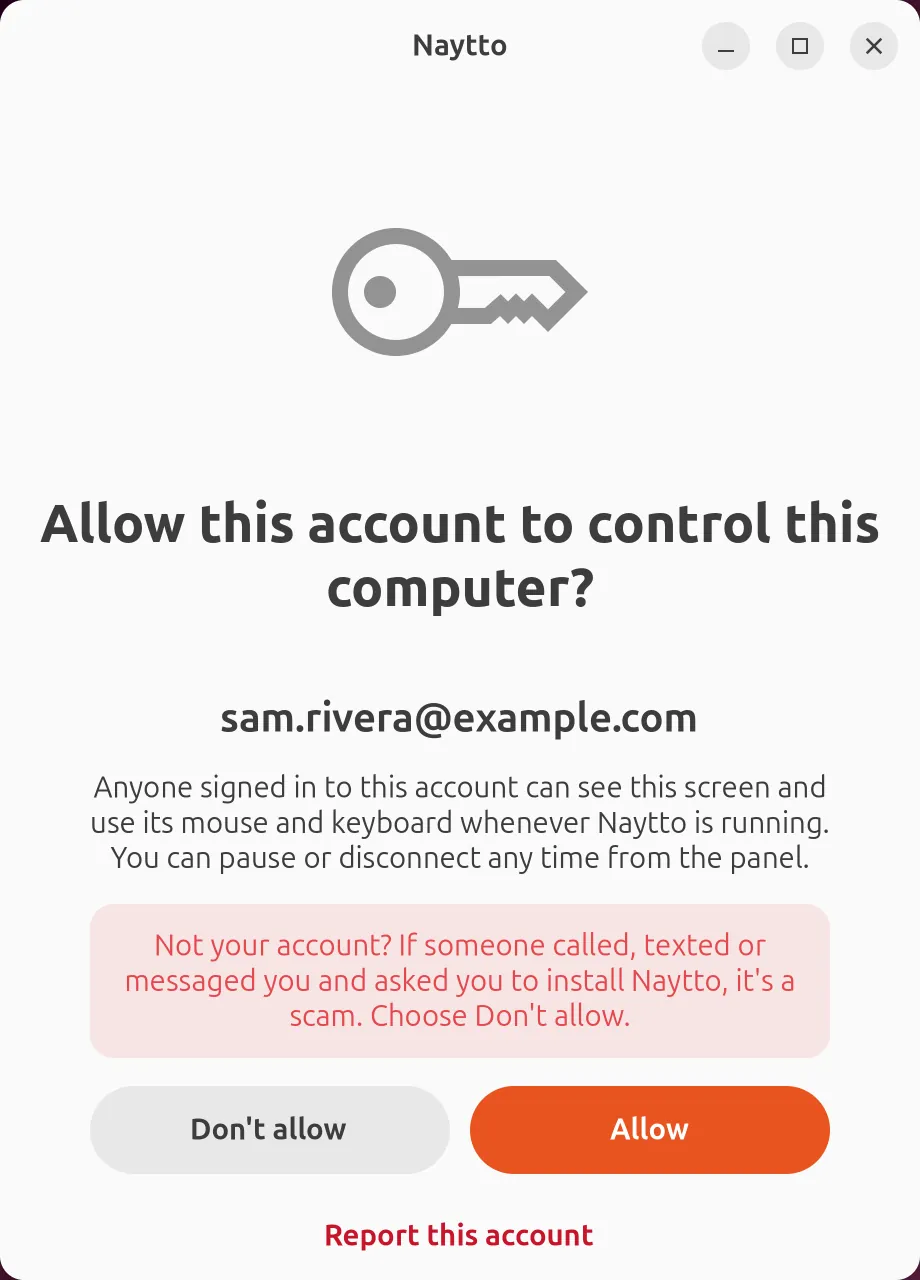
Only add your own computer. If the email address isn’t yours, or someone called, texted or messaged you and asked you to install Naytto, it’s a scam: choose Don't allow, or Report this account to have Naytto review the account.
Connect from your browser
From here on, all you need is a browser.
14Choose Connect
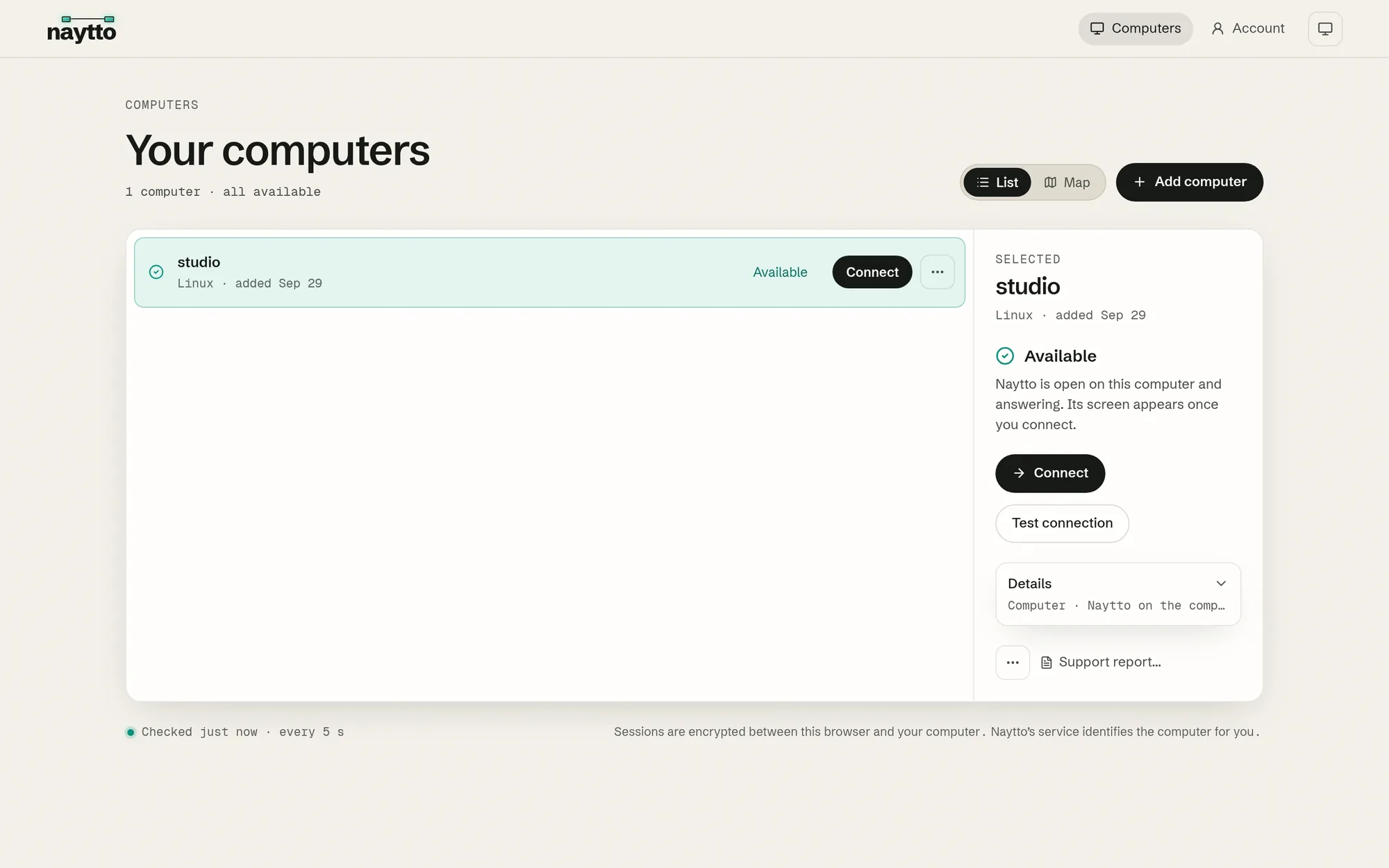
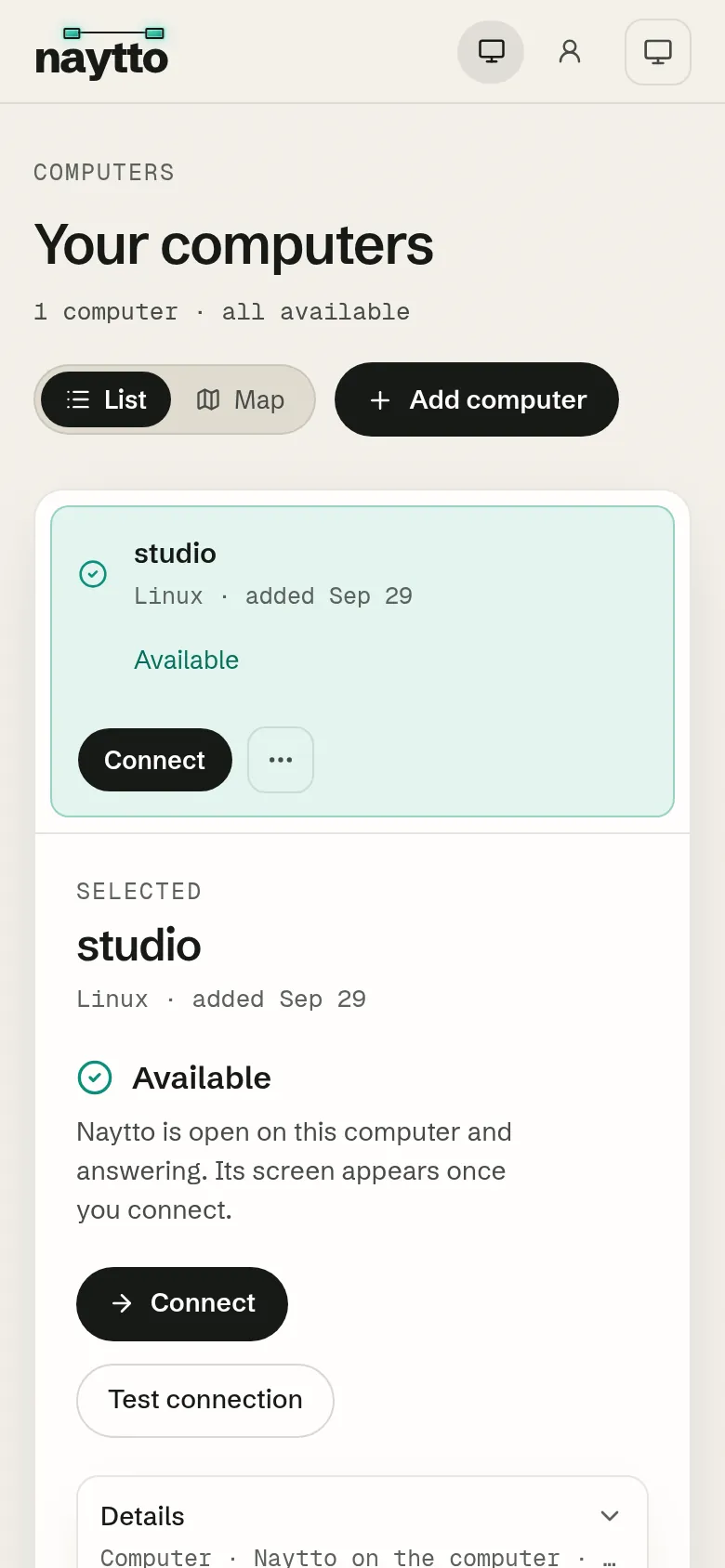
On another device, sign in at app.naytto.com, or choose Go to your computers on the page you’re on. Your computers lists the computer as Available: Naytto is open on it and answering. Choose Connect.
15Use its desktop
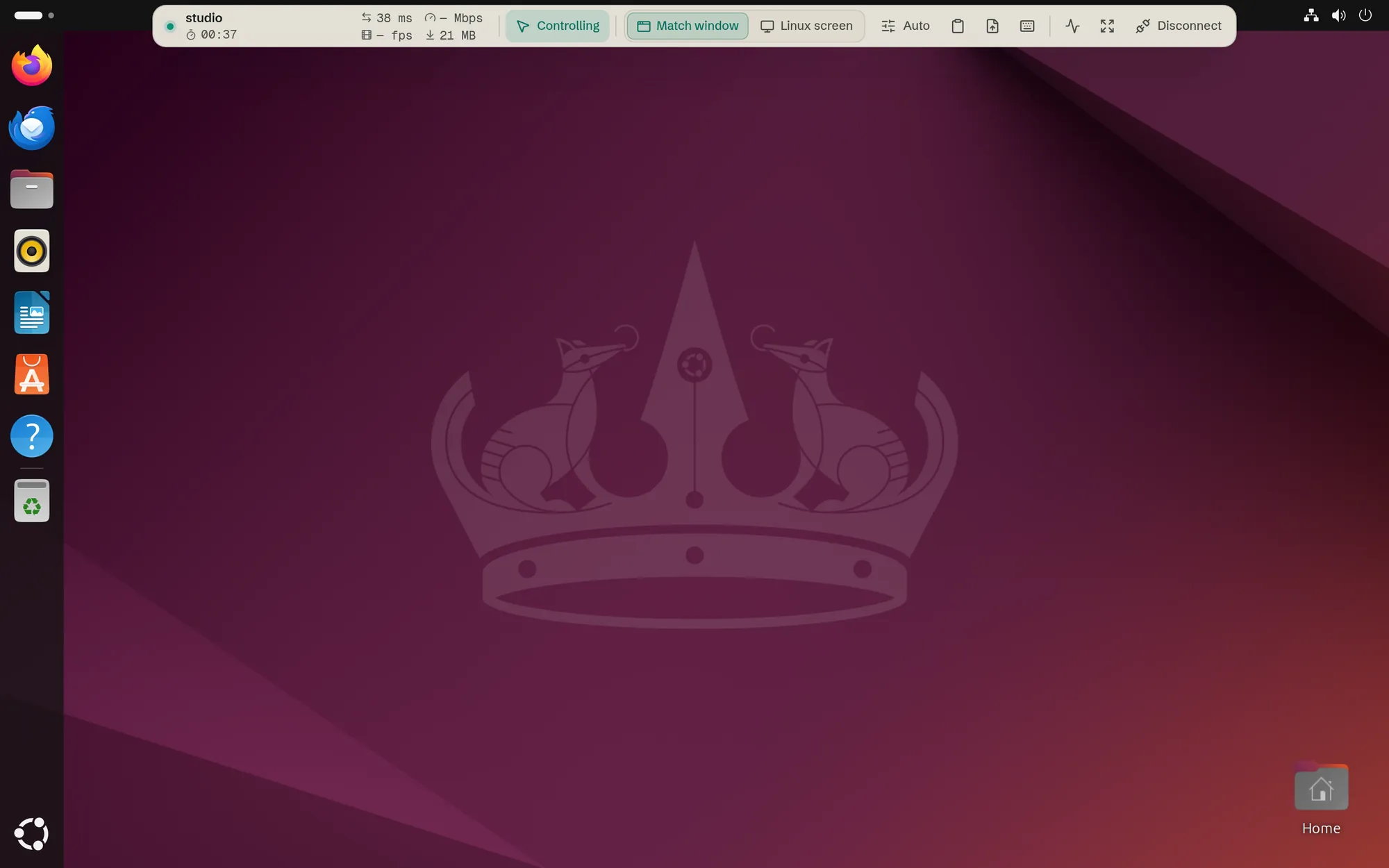
The computer’s Ubuntu desktop fills the tab, sized to your browser window. It’s Naytto’s own desktop, on a screen that exists only in memory, so it needs no monitor and never shows or changes what’s on a monitor attached to it. It keeps running between sessions, so apps you leave open are still there next time.
Hold Esc to take the keyboard and pointer back from the computer. The pill at the top of the tab opens the session controls: clipboard, file transfer, shortcuts and full screen. When you’re done, choose Disconnect. Someone at the computer can end a session too, with Disconnect in the Naytto window or naytto disconnect.
16Test the connection
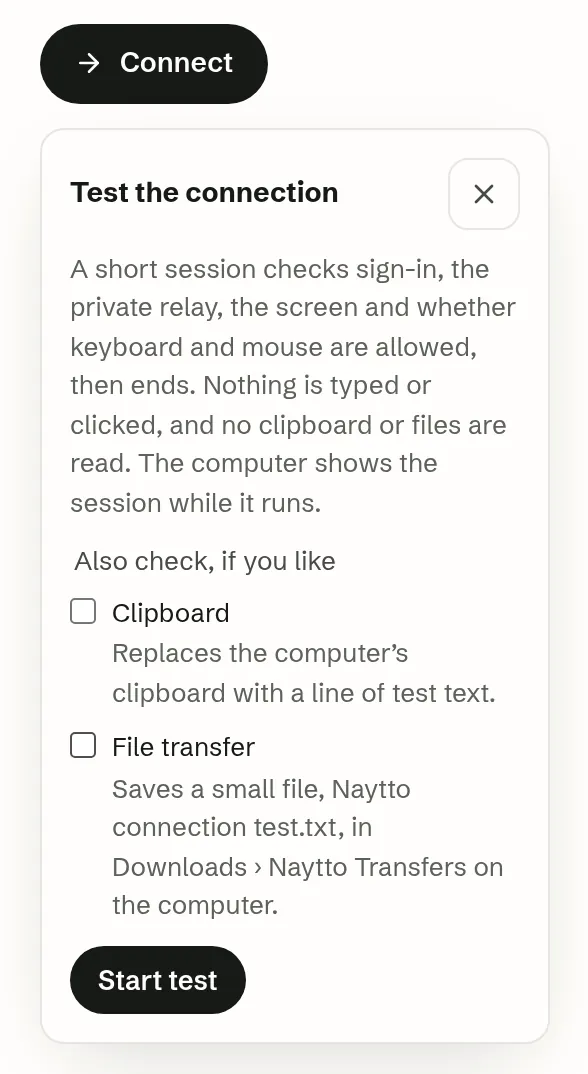
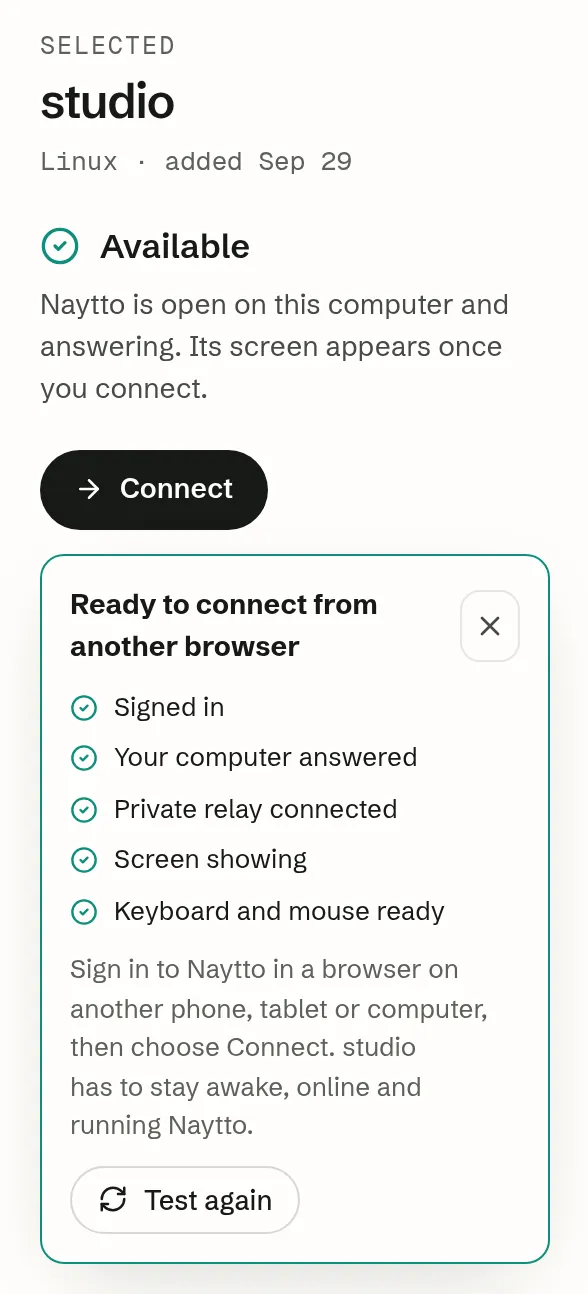
In your computers, select the computer and choose Test connection, then Start test. A short session checks sign-in, the private relay, the screen and the keyboard and mouse, then ends; nothing is typed or clicked. The Clipboard and File transfer checks are optional. After a few seconds it says Ready to connect from another browser, with a check beside each of its five lines.
17Connect from your phone
The same page works on a phone or tablet: sign in at app.naytto.com and choose Connect.
Every day
Naytto keeps running when you close its window. Open the window again whenever you want to change something.
New versions arrive through Software Updater, or sudo apt update && sudo apt upgrade, like your other apps. Naytto restarts into the new version once no one is connected.
18Keep the computer reachable
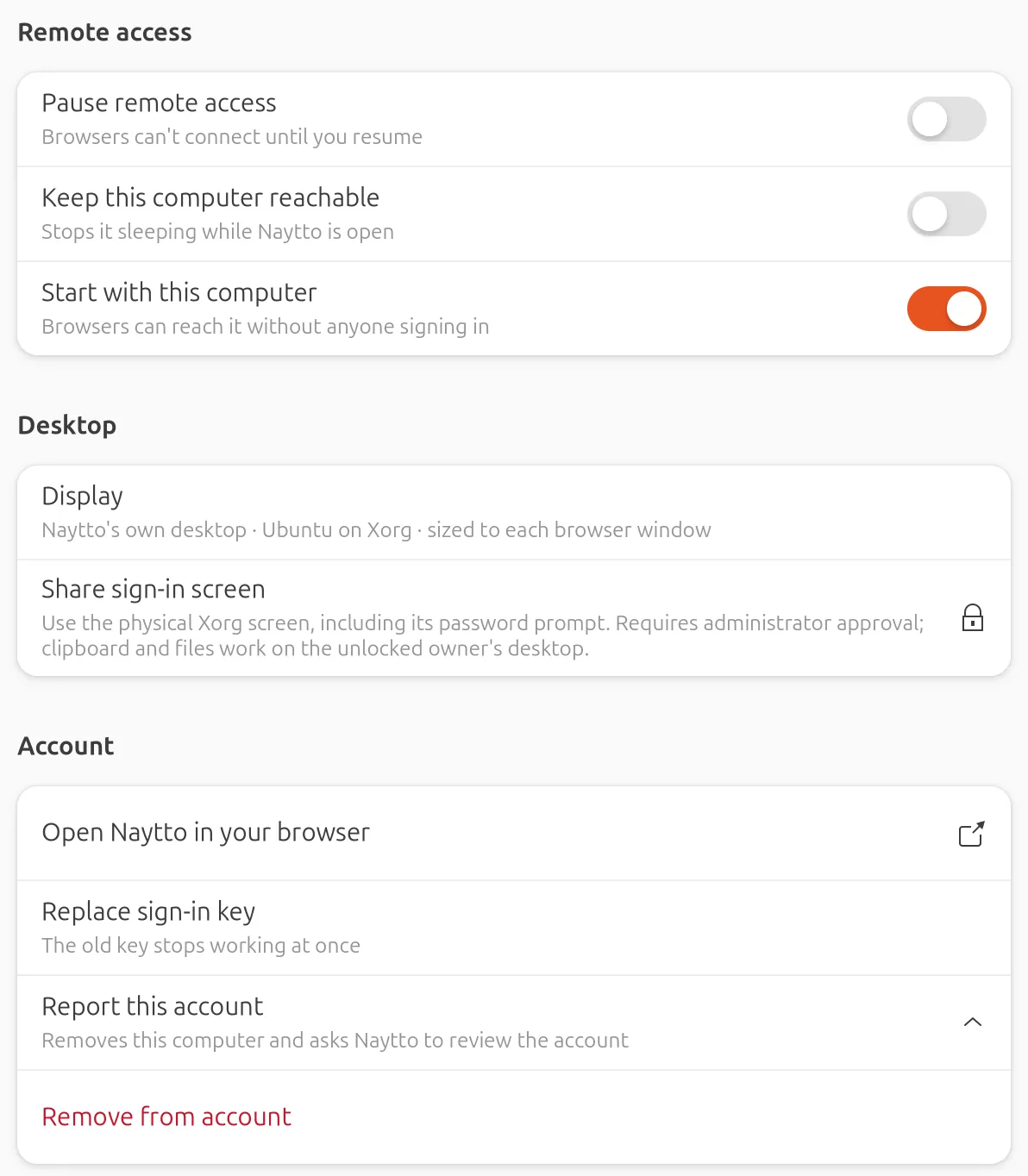
Open Naytto from Show Apps. Switch on Keep this computer reachable to stop the computer sleeping while Naytto is open, so you can connect whenever you need to. If Ubuntu doesn’t let Naytto keep it awake, Naytto says so; then switch off automatic suspend in Ubuntu’s power settings instead.
19Pause remote access
Switch on Pause remote access to stop browsers connecting. The window says Paused: browsers can't connect. In your computers, the computer shows Remote access paused with no Connect button. Switch it off to let browsers connect again. Only someone at the computer can pause or resume; in a terminal, naytto pause and naytto resume do the same.
20Remove the computer from your account
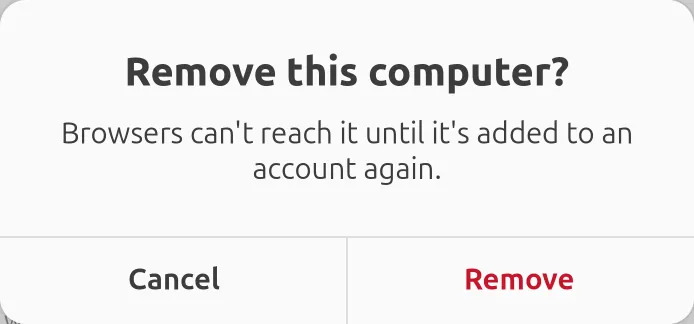
In the window, scroll to Account, choose Remove from account, then Remove. The window says Removed and shows Add to my account again. Browsers can’t reach the computer until it’s added to an account again. Naytto stays installed.
Away from the computer? In your computers, in any browser, choose … next to it, then Remove from account; any session on it ends at once.
If something isn’t right
- The package opens in Archive Manager. Right-click it and choose Open With… › App Center (step 03), or install it from a terminal as the note under step 05 shows.
- The code ran out. It works for 10 minutes. Then the Naytto window says The code expired. Start again. Choose Add to my account for a new code. For a sign-in code that expired, choose Use a different email or send a new code.
- The session shows “Oh no! Something has gone wrong”. Older versions of Naytto can’t run their desktop while someone is signed in at the computer. Update Naytto with Software Updater, then run
naytto desktop restarton the computer and connect again. - Remote access paused. Someone paused it at the computer. Switch off Pause remote access in the Naytto window, or run
naytto resumethere. - Desktop not ready. Naytto can’t run its desktop on the computer yet. Check that a desktop is installed, then choose Check again. On the computer,
naytto statussays what’s wrong. - Asleep, Not responding or Can’t reach. The computer is asleep, off or offline, or Naytto isn’t running on it, and Naytto can’t wake it yet. Wake it and open Naytto from Show Apps. Signed out before the computer’s first restart since setup? Naytto stopped with you: sign in again, or restart the computer. To keep it awake, switch on Keep this computer reachable in the Naytto window, or switch off automatic suspend in Ubuntu’s power settings.
Still stuck? Get help from a person.